ASUS G713RC RAM Replacement

What you need

  1. ASUS G713RC RAM Replacement, RAM: step 1, image 1 of 3 ASUS G713RC RAM Replacement, RAM: step 1, image 2 of 3 ASUS G713RC RAM Replacement, RAM: step 1, image 3 of 3
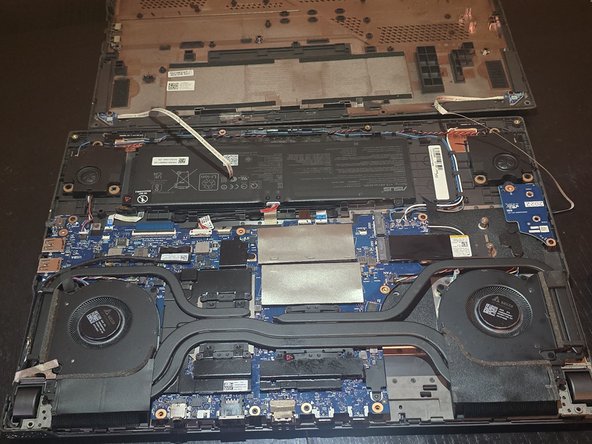
    • Warning: Do not touch any other components inside if you don't have to. It may result in damage and can destroy your laptop.

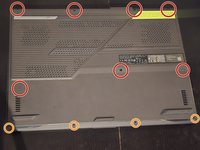
    • Remove the seven large screws using a Phillips #00 screwdriver.

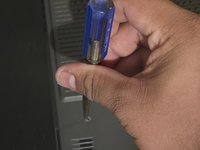
    • Remove the four small screws using a Phillips #00 screwdriver.

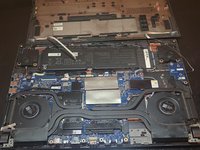
    • Carefully lift the lid, being careful of the two cables connected to the laptop.

  2. ASUS G713RC RAM Replacement: step 2, image 1 of 3 ASUS G713RC RAM Replacement: step 2, image 2 of 3 ASUS G713RC RAM Replacement: step 2, image 3 of 3
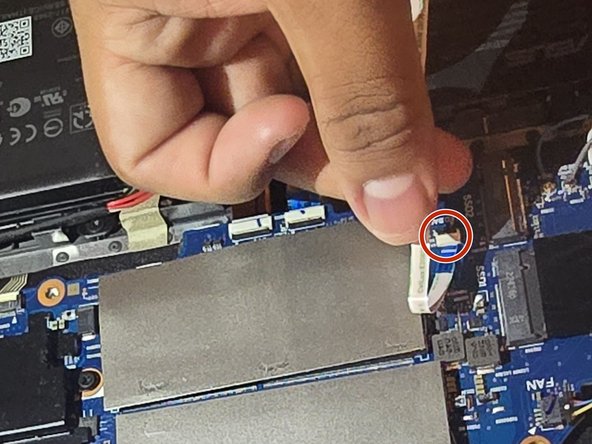
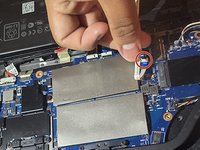
    • Carefully detach the two white cables that are connected to the lid.

    • Set aside the lid.

  3. ASUS G713RC RAM Replacement: step 3, image 1 of 3 ASUS G713RC RAM Replacement: step 3, image 2 of 3 ASUS G713RC RAM Replacement: step 3, image 3 of 3
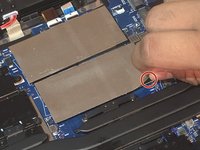
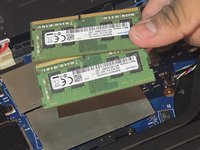
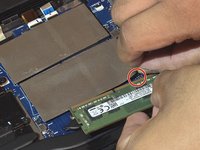
    • Carefully lift up each gray bar.

    • It is important that you don't completely remove the gray bar.

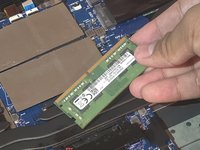
    • Remove the RAM.

  4. ASUS G713RC RAM Replacement: step 4, image 1 of 3 ASUS G713RC RAM Replacement: step 4, image 2 of 3 ASUS G713RC RAM Replacement: step 4, image 3 of 3
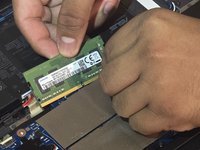
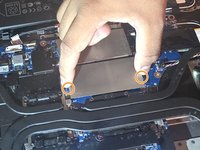
    • Insert each RAM stick under the gray bar. Push until you hear a click.

    • Hold down the gray bar to make sure it is flat and secure.

    • It might be a bit bumpy, but it is nothing to worry about.

    • It is important that you don't completely remove the gray bar.

  5. ASUS G713RC RAM Replacement: step 5, image 1 of 2 ASUS G713RC RAM Replacement: step 5, image 2 of 2
    • Reattach the lid by connecting the white wires to the base.

    • Plug in the white wires on both sides. You want to plug them in thoroughly, otherwise, your laptop won't turn on.

  6. ASUS G713RC RAM Replacement: step 6, image 1 of 2 ASUS G713RC RAM Replacement: step 6, image 2 of 2
    • Line up the lid to the laptop.

    • Tighten the seven large screws using a Phillips #00 screwdriver.

    • Tighten the four small screws using a Phillips #00 screwdriver.

Finish Line

2 other people completed this guide.

Javier Bobadilla

Member since: 10/23/24

181 Reputation

1 Guide authored

Team

0 Guide Comments

Add Comment

View Statistics:

Past 24 Hours: 3

Past 7 Days: 23

Past 30 Days: 77

All Time: 870