Free Shipping on Domestic Orders $75+

Acer Extensa 4420 Keyboard Replacement

What you need

  1. Acer Extensa 4420 Keyboard Replacement, Battery: step 1, image 1 of 2 Acer Extensa 4420 Keyboard Replacement, Battery: step 1, image 2 of 2
    • First, make sure that the battery lock is turned off.

    • The battery lock makes it so the battery doesn't accidentally fall out of your computer while it is running.

  2. Acer Extensa 4420 Keyboard Replacement: step 2, image 1 of 3 Acer Extensa 4420 Keyboard Replacement: step 2, image 2 of 3 Acer Extensa 4420 Keyboard Replacement: step 2, image 3 of 3
    • Then, slide the other battery lock while pulling the battery out.

  3. Acer Extensa 4420 Keyboard Replacement, Keyboard Cover: step 3, image 1 of 3 Acer Extensa 4420 Keyboard Replacement, Keyboard Cover: step 3, image 2 of 3 Acer Extensa 4420 Keyboard Replacement, Keyboard Cover: step 3, image 3 of 3
    Tool used on this step:
    Spudger
    $3.99
    Buy
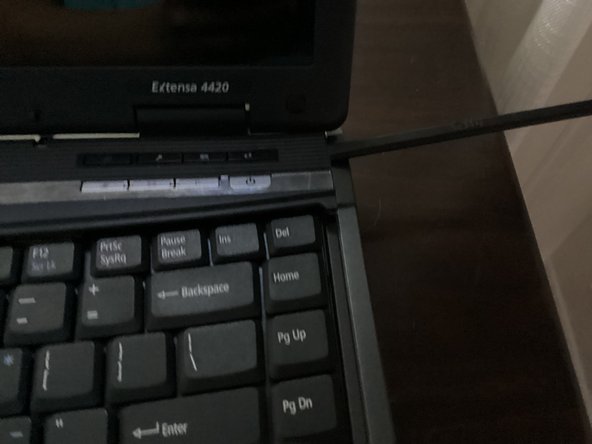
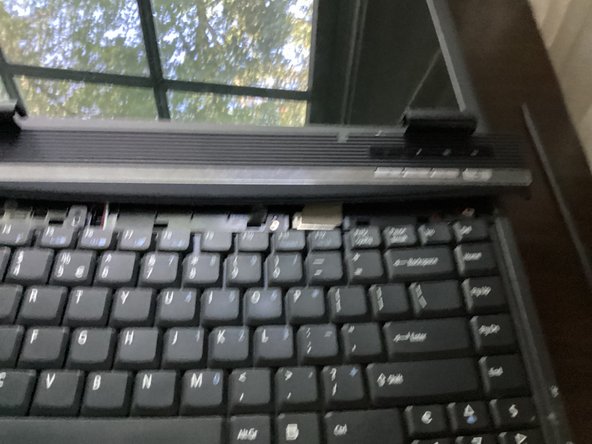
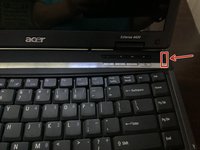
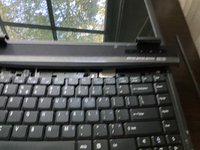
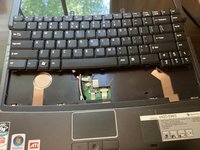
    • Open the keyboard cover with a spudger

    • You will need to fold the display all the way back, or else the keyboard cover will get stuck on it.

  4. Acer Extensa 4420 Keyboard Replacement, Keyboard: step 4, image 1 of 3 Acer Extensa 4420 Keyboard Replacement, Keyboard: step 4, image 2 of 3 Acer Extensa 4420 Keyboard Replacement, Keyboard: step 4, image 3 of 3
    Tool used on this step:
    Phillips #000 Screwdriver
    $5.49
    Buy
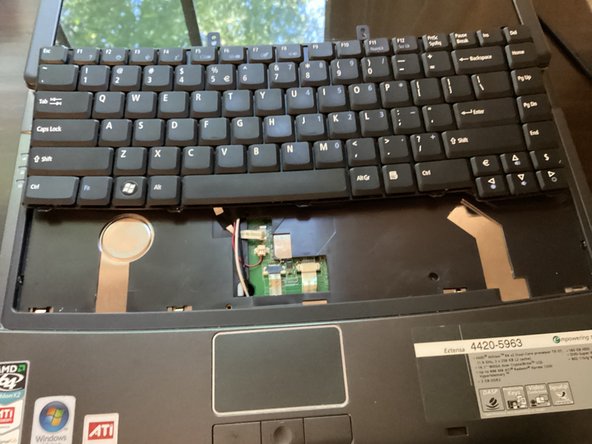
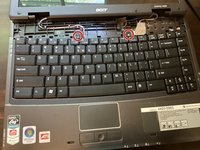
    • Unscrew these 2 screws with a phillips #000 screwdriver.

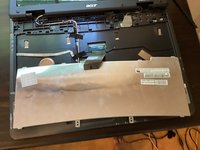
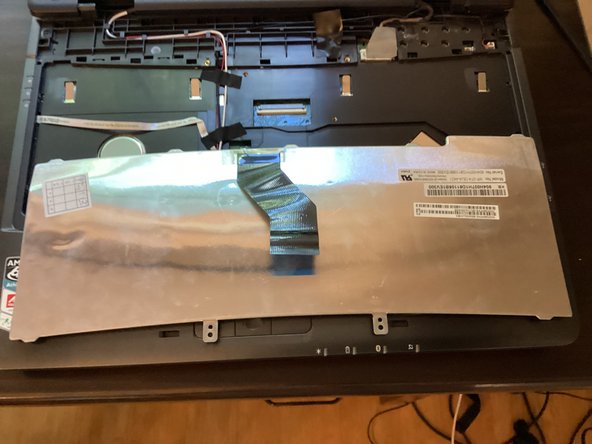
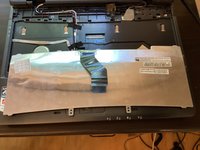
    • Pull the keyboard out. It should come out pretty easily.

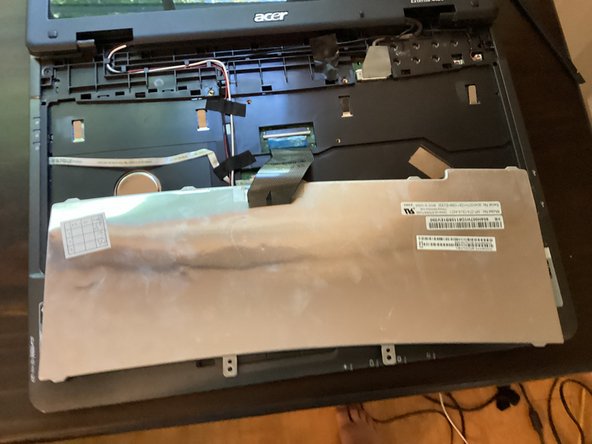
    • DO NOT PULL IT OUT TOO HARD, AS YOU WOULD BREAK THE RIBBON CABLE!

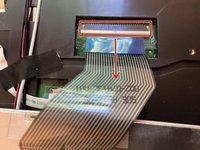
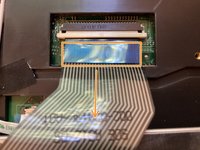
    • Flip the keyboard around, so you have access to the ribbon cable on the back of the keyboard

  5. Acer Extensa 4420 Keyboard Replacement: step 5, image 1 of 3 Acer Extensa 4420 Keyboard Replacement: step 5, image 2 of 3 Acer Extensa 4420 Keyboard Replacement: step 5, image 3 of 3
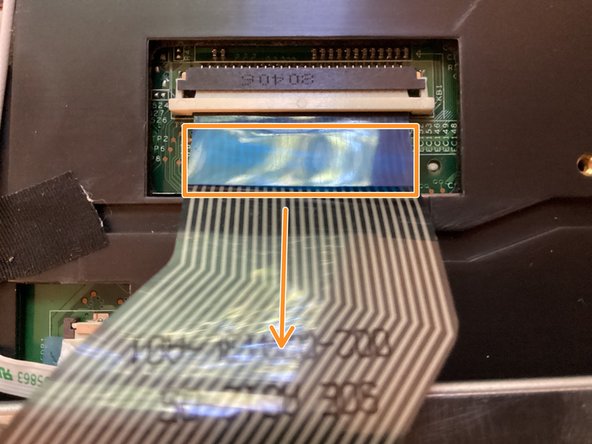
    • Pull the white part of the connector towards you.

    • Doing so will unlock the ribbon cable.

    • Take the blue tag and pull it towards you.

Conclusion

To reassemble your device, follow these instructions in reverse order.

TheMasterG

Member since: 07/19/24

1,394 Reputation

12 Guides authored

0 Guide Comments

Add Comment

View Statistics:

Past 24 Hours: 1

Past 7 Days: 2

Past 30 Days: 8

All Time: 114