Battery Disconnect

Prerequisite Only
This is a prerequisite-only guide! This guide is part of another procedure and isn’t meant to be used alone.

What you need

  1. Battery Disconnect, Unfasten the lower case: step 1, image 1 of 2 Battery Disconnect, Unfasten the lower case: step 1, image 2 of 2
    • Use a T5 Torx screwdriver to remove the eight 3.3 mm screws securing the case.

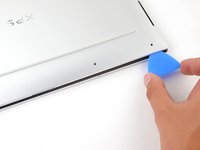
  2. Battery Disconnect, Insert an opening pick: step 2, image 1 of 2 Battery Disconnect, Insert an opening pick: step 2, image 2 of 2
    • Insert an opening pick between the lower case and the chassis on the front right edge.

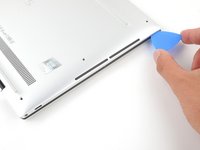
  3. Battery Disconnect, Release the case's front clips: step 3, image 1 of 2 Battery Disconnect, Release the case's front clips: step 3, image 2 of 2
    • Slide the pick along the front edge to release the clips securing the lower case.

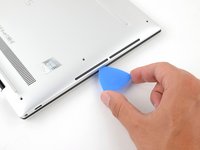
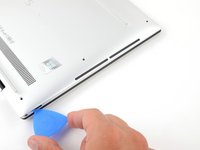
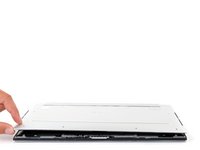
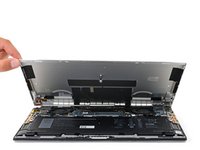
  4. Battery Disconnect, Release the remaining clips: step 4, image 1 of 3 Battery Disconnect, Release the remaining clips: step 4, image 2 of 3 Battery Disconnect, Release the remaining clips: step 4, image 3 of 3
    • Continue sliding the opening pick along the perimeter of the lower case to release the remaining clips.

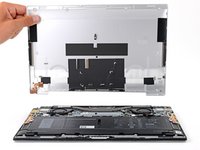
  5. Battery Disconnect: step 5, image 1 of 3 Battery Disconnect: step 5, image 2 of 3 Battery Disconnect: step 5, image 3 of 3
    • Lift the lower case from the chassis and remove it.

    • During reassembly, this is a good point to power on your laptop and test all functions before sealing it up. Be sure to power your laptop back down before you continue working.

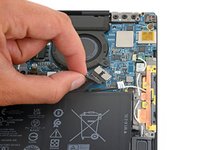
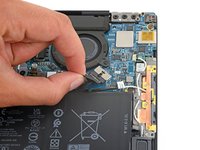
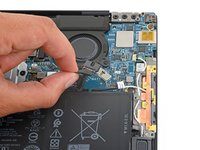
  6. Battery Disconnect, Disconnect the battery: step 6, image 1 of 3 Battery Disconnect, Disconnect the battery: step 6, image 2 of 3 Battery Disconnect, Disconnect the battery: step 6, image 3 of 3
    • Grip the pull tab on the battery connector with your fingers and gently pull away from the socket to disconnect it.

    • After you disconnect the battery, some of your laptop's startup (BIOS) settings will revert to their defaults.

    • You may need to run BIOS setup to reset the system clock as well as any specialized disk settings before you can boot up your XPS.

Conclusion

To reassemble your device, follow these instructions in reverse order.

Spencer Day

Member since: 09/14/22

155,298 Reputation

1,033 Guides authored

Team

iFixit Member of iFixit

Staff

123 Members

23,788 Guides authored

0 Guide Comments

Add Comment

View Statistics:

Past 24 Hours: 0

Past 7 Days: 0

Past 30 Days: 1

All Time: 81