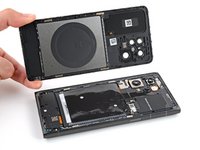
Battery Disconnection

Prerequisite Only
This is a prerequisite-only guide! This guide is part of another procedure and isn’t meant to be used alone.

What you need

  1. Battery Disconnection, Prepare your phone for disassembly: step 1, image 1 of 1
    • Let your phone's battery drain below 25% before starting this repair. A charged lithium‑ion battery may catch fire if damaged.

    • Unplug all cables and completely power off your phone.

  2. Battery Disconnection, Separate the back cover: step 2, image 1 of 3 Battery Disconnection, Separate the back cover: step 2, image 2 of 3 Battery Disconnection, Separate the back cover: step 2, image 3 of 3
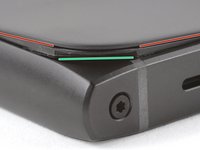
    • A screw‑driven camshaft in the bottom left corner pushes the back cover away from the phone, creating a gap to begin separating the cover.

    • With the back cover facing up, use a T3 Torx screwdriver to turn the screw in the bottom edge counterclockwise until the back cover pops up.

  3. Battery Disconnection: step 3, image 1 of 3 Battery Disconnection: step 3, image 2 of 3 Battery Disconnection: step 3, image 3 of 3
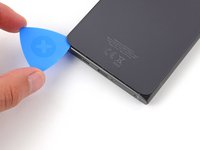
    • Before separating the back cover, note the following:

    • There's a seam just under the back cover panel. Don't insert your tool here.

    • Insert your tool completely under the back cover, so it's between the frame and the underside of the back cover.

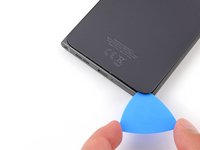
    • Insert an opening pick under the bottom left corner of the back cover and slide it along the bottom edge to release the clips and separate the adhesive.

    • You should feel and hear the back cover clips release. If you don't, insert the pick deeper and try again.

  4. Battery Disconnection: step 4, image 1 of 3 Battery Disconnection: step 4, image 2 of 3 Battery Disconnection: step 4, image 3 of 3
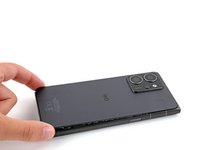
    • Continue sliding the pick under the perimeter of the back cover to fully separate the clips and adhesive.

  5. Battery Disconnection, Remove the back cover: step 5, image 1 of 3 Battery Disconnection, Remove the back cover: step 5, image 2 of 3 Battery Disconnection, Remove the back cover: step 5, image 3 of 3
    • Lift and remove the back cover.

    • During reassembly:

    • Now is a good time to test your phone before sealing it up. Power it on and check that it works. Power it back down before you continue reassembly.

    • If you're installing a new back cover:

    • Make sure you remove all liners from the underside.

    • Use the flat end of a spudger to press the small cable above the wireless charging coil into place over its alignment posts.

    • Place the back cover onto the frame and firmly squeeze around the perimeter to reengage all the clips.

  6. Battery Disconnection, Disconnect the battery: step 6, image 1 of 2 Battery Disconnection, Disconnect the battery: step 6, image 2 of 2
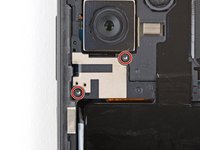
    • Use a T3 Torx screwdriver to remove the two screws securing the battery connector cover.

  7. Battery Disconnection: step 7, image 1 of 2 Battery Disconnection: step 7, image 2 of 2
    • Gently flip the graphite sheet on the battery over the top edge of your phone.

    • Be careful not to tear the sheet, as it's very delicate.

  8. Battery Disconnection: step 8, image 1 of 3 Battery Disconnection: step 8, image 2 of 3 Battery Disconnection: step 8, image 3 of 3
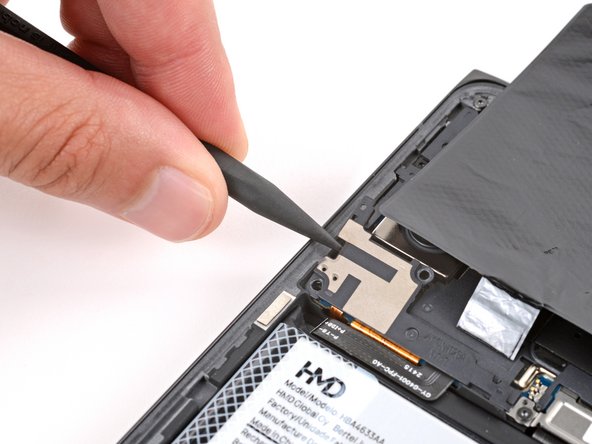
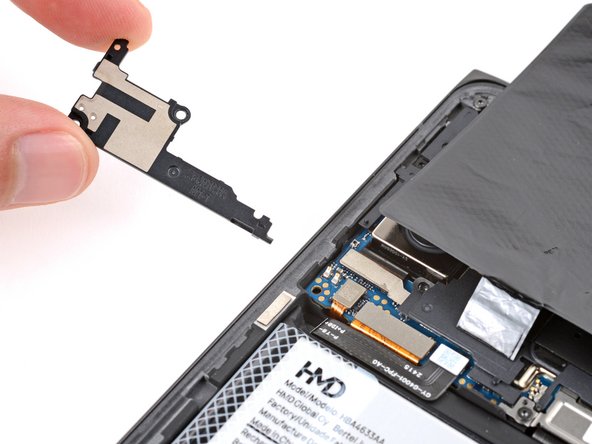
    • Insert the point of a spudger in the notch on the left edge of the battery connector cover and pry up to release its clips.

    • Only insert your tool enough to pry up the cover. Otherwise, you may accidentally disconnect the rear camera press connector.

    • Remove the cover.

    • During reassembly, firmly press the cover into place to engage the clips.

  9. Battery Disconnection: step 9, image 1 of 3 Battery Disconnection: step 9, image 2 of 3 Battery Disconnection: step 9, image 3 of 3
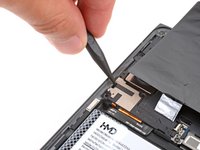
    • Insert the tip of an opening pick under the top edge of the battery press connector and pry up to disconnect it.

    • Check if the rear camera press connector got disconnected during the previous step. If it did, reconnect it.

    • To reconnect a press connector, align it over the socket and gently press down on one side until it clicks into place, then press down on the other side. It might take a few tries to align the connector.

Conclusion

To reassemble your device, follow these instructions in reverse order.

Spencer Day

Member since: 09/14/22

155,036 Reputation

1,033 Guides authored

Team

iFixit Member of iFixit

Staff

123 Members

23,779 Guides authored

0 Guide Comments

Add Comment

View Statistics:

Past 24 Hours: 0

Past 7 Days: 1

Past 30 Days: 4

All Time: 81