Daughterboard Disconnection

Prerequisite Only
This is a prerequisite-only guide! This guide is part of another procedure and isn’t meant to be used alone.

What you need

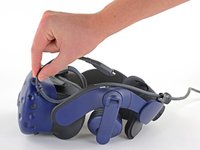
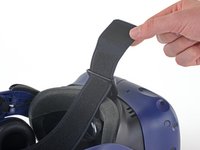
  1. Daughterboard Disconnection, Reposition the head strap: step 1, image 1 of 2 Daughterboard Disconnection, Reposition the head strap: step 1, image 2 of 2
    • Rotate the head strap forward as far as it will go.

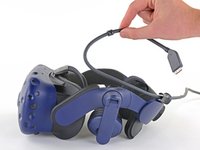
  2. Daughterboard Disconnection, Unplug the All-In-One Cable: step 2, image 1 of 2 Daughterboard Disconnection, Unplug the All-In-One Cable: step 2, image 2 of 2
    • Unplug the All-In-One Cable from your headset.

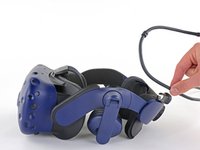
  3. Daughterboard Disconnection, Remove the All-In-One Cable: step 3, image 1 of 3 Daughterboard Disconnection, Remove the All-In-One Cable: step 3, image 2 of 3 Daughterboard Disconnection, Remove the All-In-One Cable: step 3, image 3 of 3
    • Remove the All-In-One Cable from the cable guides along the left side of the head strap.

    • During reassembly, connect the All-In-One Cable to the headset before routing it through the cable guides. This will ensure it has the right amount of slack.

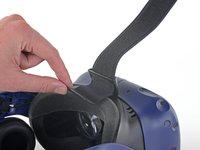
  4. Daughterboard Disconnection, Remove the top strap: step 4, image 1 of 2 Daughterboard Disconnection, Remove the top strap: step 4, image 2 of 2
    • Separate the top strap from itself where the Velcro secures it.

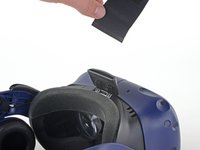
  5. Daughterboard Disconnection: step 5, image 1 of 3 Daughterboard Disconnection: step 5, image 2 of 3 Daughterboard Disconnection: step 5, image 3 of 3
    • Peel back the Velcro securing the rear of the top strap.

    • Feed the top strap out through the head strap to partially remove it.

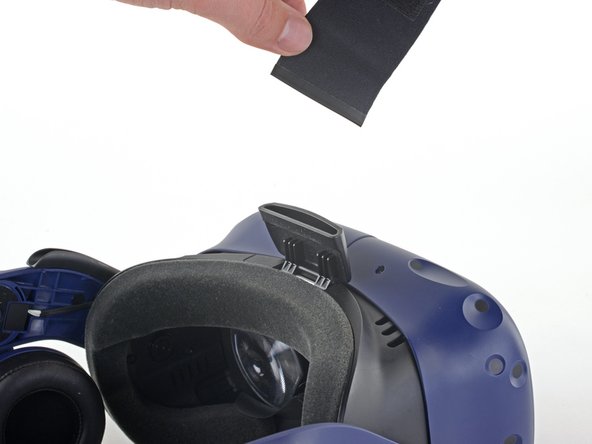
  6. Daughterboard Disconnection: step 6, image 1 of 3 Daughterboard Disconnection: step 6, image 2 of 3 Daughterboard Disconnection: step 6, image 3 of 3
    • Feed the top strap through the clip near the front of headset to fully remove it.

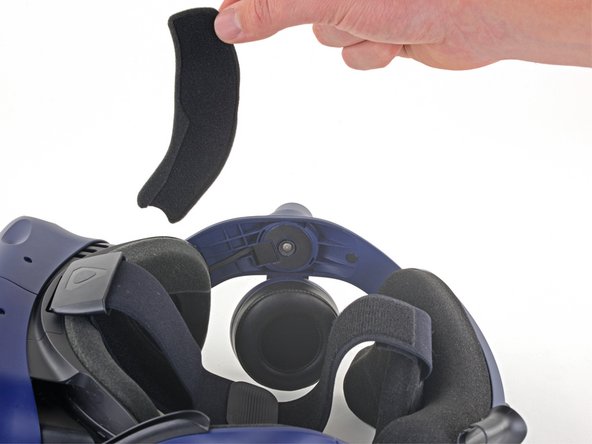
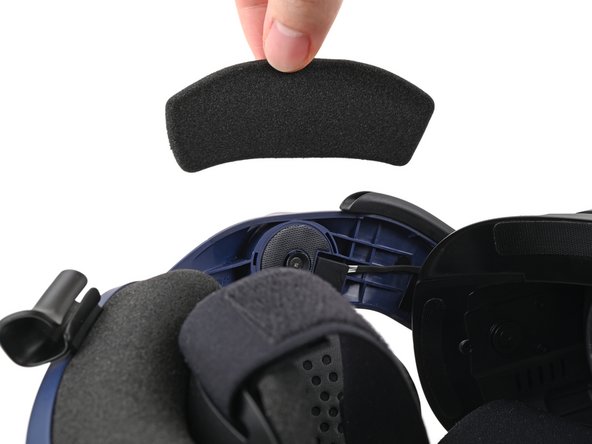
  7. Daughterboard Disconnection, Remove the front side foam pads: step 7, image 1 of 3 Daughterboard Disconnection, Remove the front side foam pads: step 7, image 2 of 3 Daughterboard Disconnection, Remove the front side foam pads: step 7, image 3 of 3
    • Peel off both front side foam pads to uncover the speaker wires.

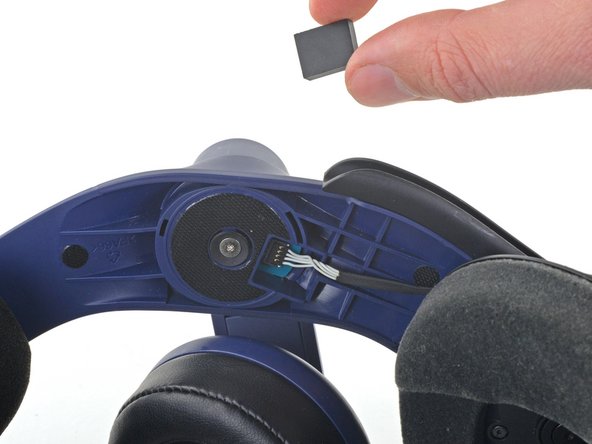
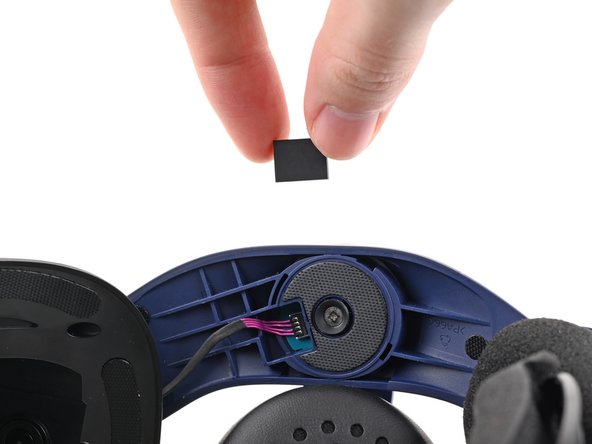
  8. Daughterboard Disconnection, Remove the two rubber spacers: step 8, image 1 of 3 Daughterboard Disconnection, Remove the two rubber spacers: step 8, image 2 of 3 Daughterboard Disconnection, Remove the two rubber spacers: step 8, image 3 of 3
    • Use the point of your spudger to pry out the two rubber spacers next to the headphone screws.

    • Be careful not to accidentally pry any of the speaker wires under the rubber spacer.

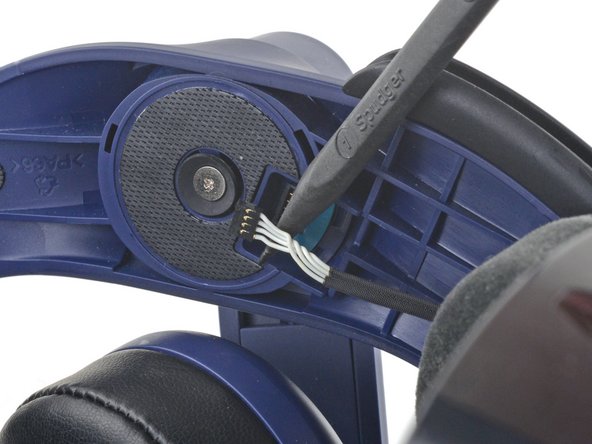
  9. Daughterboard Disconnection, Disconnect the speaker wires: step 9, image 1 of 3 Daughterboard Disconnection, Disconnect the speaker wires: step 9, image 2 of 3 Daughterboard Disconnection, Disconnect the speaker wires: step 9, image 3 of 3
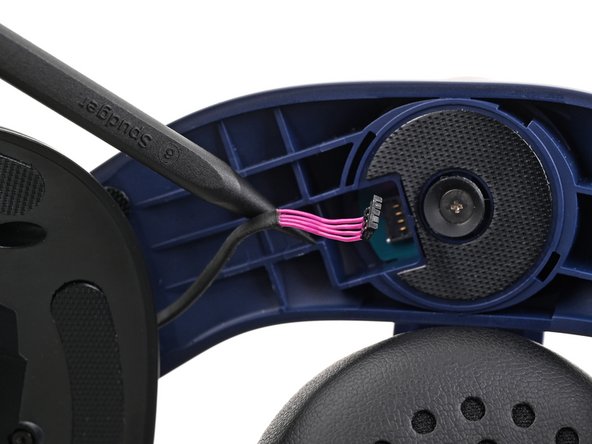
    • Use the point of your spudger to pry up and disconnect both the left and right headphone speaker wires.

  10. Daughterboard Disconnection, Remove the head strap: step 10, image 1 of 2 Daughterboard Disconnection, Remove the head strap: step 10, image 2 of 2
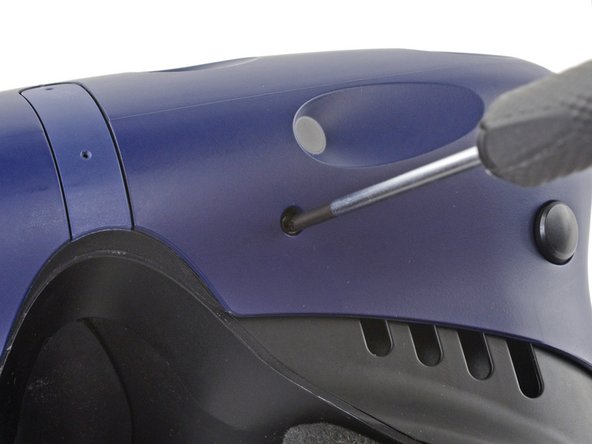
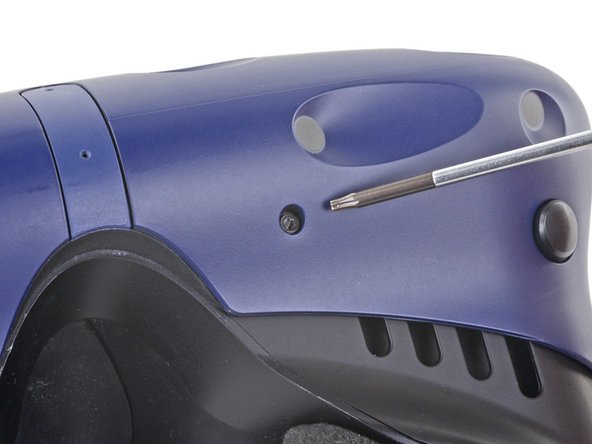
    • Use a T6 Torx screwdriver to remove the two 12.1 mm screws (one on each side) securing the head strap to the headset.

    • Use a T5 Torx screwdriver to remove the following screws securing the head strap to the headset:

    • Four 3.9 mm screws (two on each side)

    • Two 4.1 mm screws (one on each side)

  11. Daughterboard Disconnection: step 11, image 1 of 1
    • Remove the two plastic spacers underneath the previously removed Torx T6 screw.

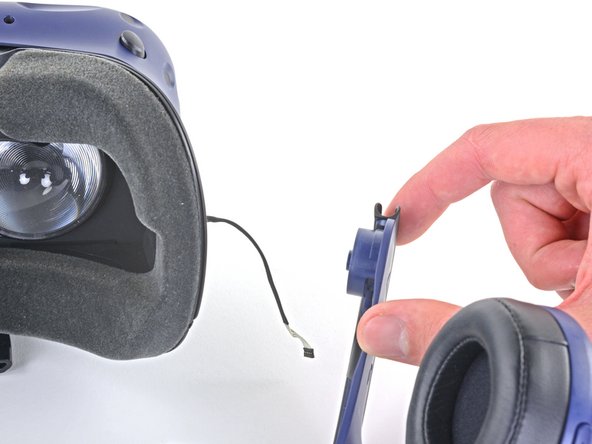
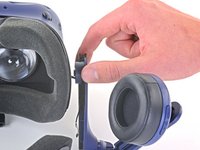
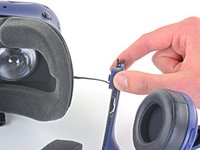
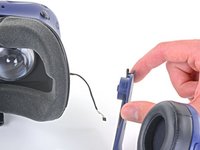
  12. Daughterboard Disconnection: step 12, image 1 of 3 Daughterboard Disconnection: step 12, image 2 of 3 Daughterboard Disconnection: step 12, image 3 of 3
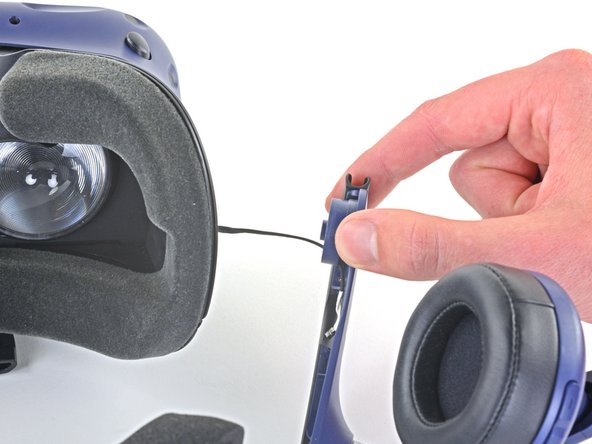
    • Thread the headphone speaker wires out through both ends of the head strap.

  13. Daughterboard Disconnection, Remove the outer shell: step 13, image 1 of 3 Daughterboard Disconnection, Remove the outer shell: step 13, image 2 of 3 Daughterboard Disconnection, Remove the outer shell: step 13, image 3 of 3
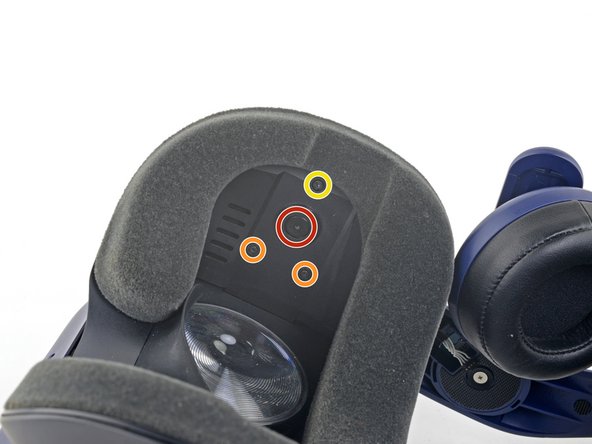
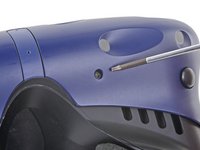
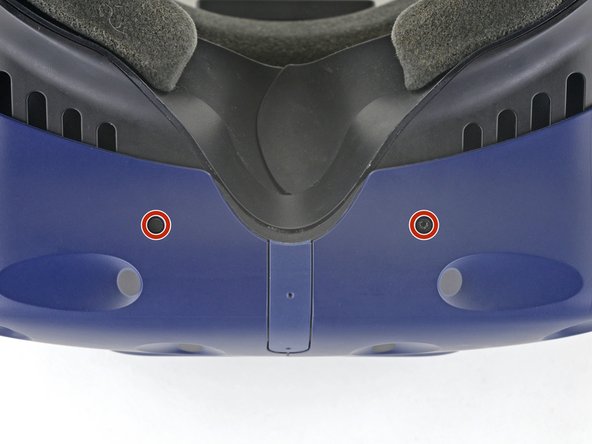
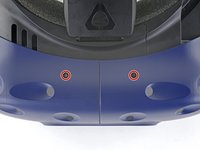
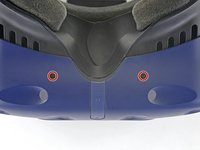
    • The four screws securing the outer shell are covered with black stickers. If the stickers are difficult to remove, simply press your T6 Torx driver through them.

  14. Daughterboard Disconnection: step 14, image 1 of 2 Daughterboard Disconnection: step 14, image 2 of 2
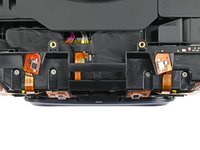
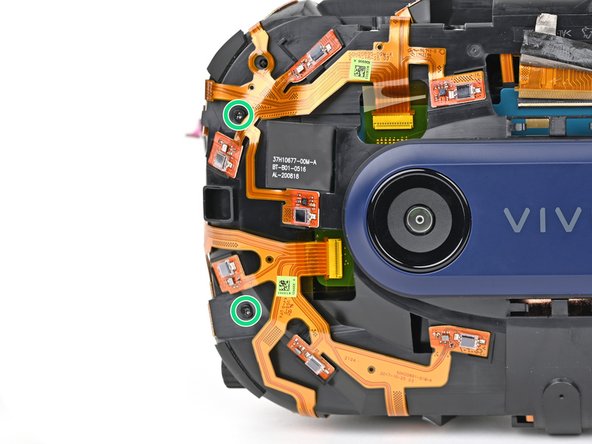
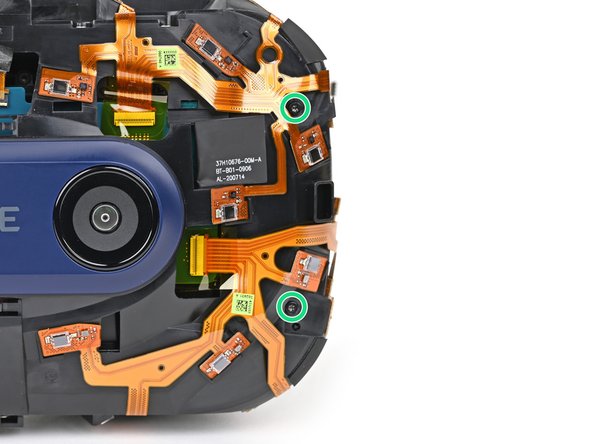
    • Use a T6 Torx screwdriver to remove the four 3.9 mm screws (two on top, two on bottom) securing the outer shell to the headset.

  15. Daughterboard Disconnection: step 15, image 1 of 3 Daughterboard Disconnection: step 15, image 2 of 3 Daughterboard Disconnection: step 15, image 3 of 3
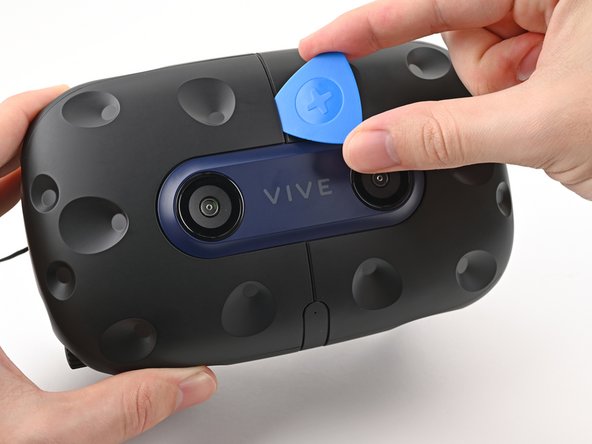
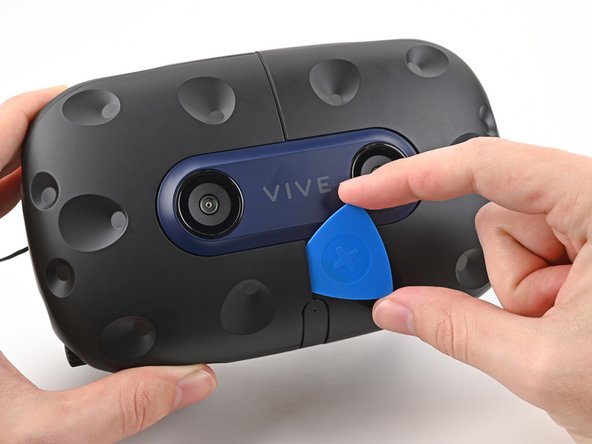
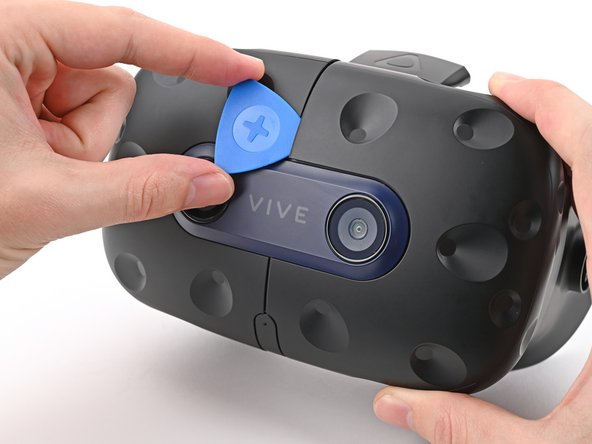
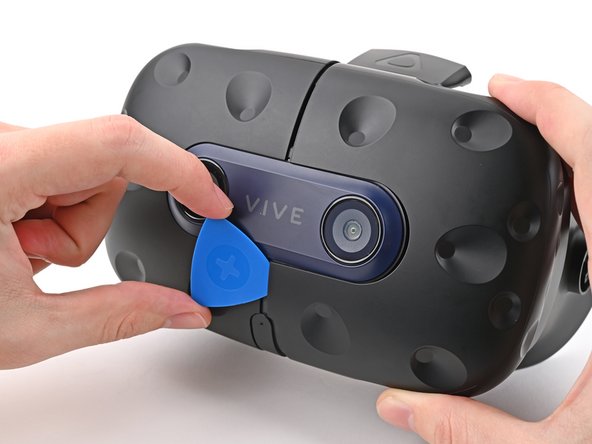
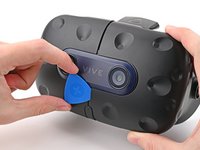
    • Insert an opening pick into the seam between the two halves of the outer shell.

    • Slide the opening pick through the seam to dislodge the clips securing it to the headset.

    • Only insert the opening pick as far as necessary. There are ribbon cables underneath the outer shell.

  16. Daughterboard Disconnection: step 16, image 1 of 3 Daughterboard Disconnection: step 16, image 2 of 3 Daughterboard Disconnection: step 16, image 3 of 3
    • Continue sliding the opening pick through each seam until all clips have been dislodged.

  17. Daughterboard Disconnection: step 17, image 1 of 3 Daughterboard Disconnection: step 17, image 2 of 3 Daughterboard Disconnection: step 17, image 3 of 3
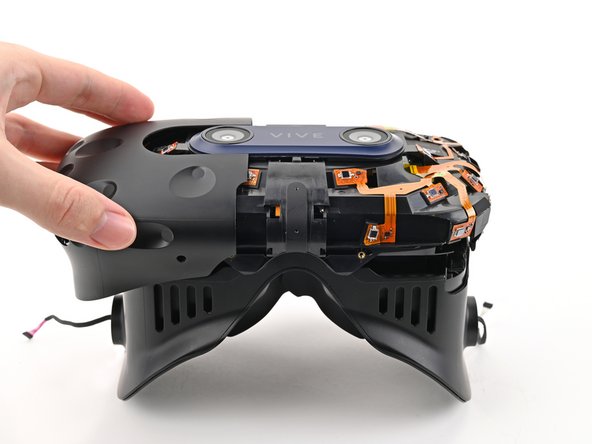
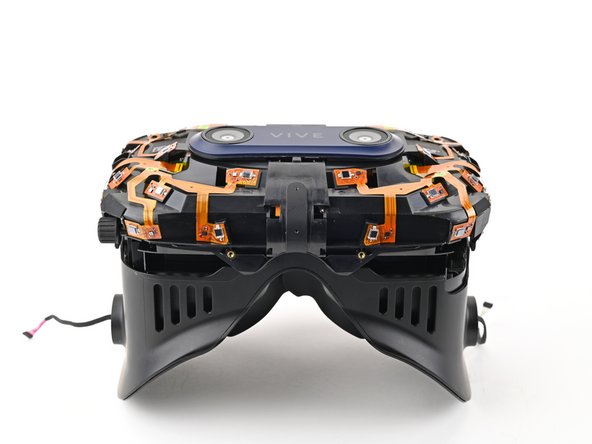
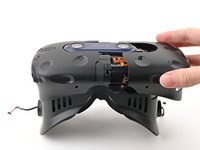
    • Carefully slide each half of the outer shell off of the sensor array.

    • Be careful not to snag any of the ribbon cables underneath.

  18. Daughterboard Disconnection, Remove the face rest cushion: step 18, image 1 of 3 Daughterboard Disconnection, Remove the face rest cushion: step 18, image 2 of 3 Daughterboard Disconnection, Remove the face rest cushion: step 18, image 3 of 3
    • Use your fingers to gently peel the face rest cushion off of the headset.

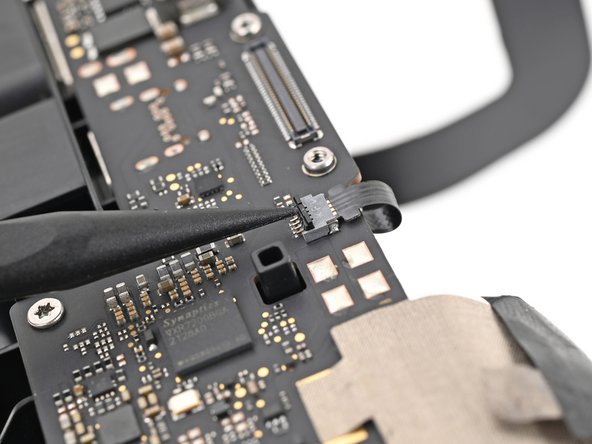
  19. Daughterboard Disconnection, Disconnect the microphone: step 19, image 1 of 2 Daughterboard Disconnection, Disconnect the microphone: step 19, image 2 of 2
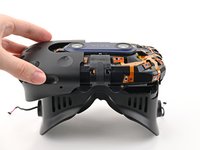
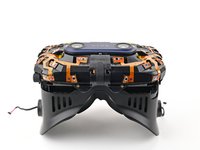
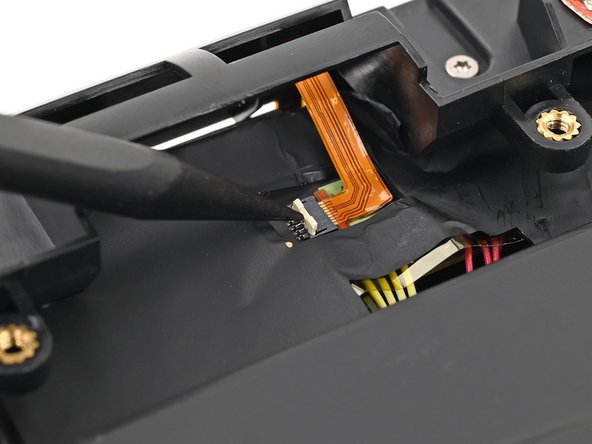
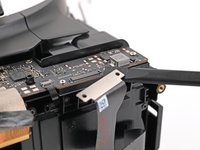
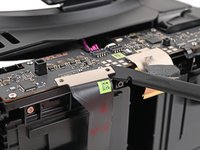
    • Use the point of your spudger, or a clean fingernail, to flip up the locking tab on the microphone ZIF connector on the daughterboard.

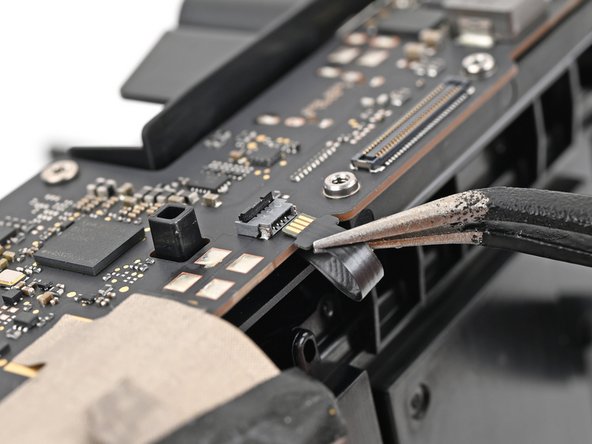
  20. Daughterboard Disconnection: step 20, image 1 of 2 Daughterboard Disconnection: step 20, image 2 of 2
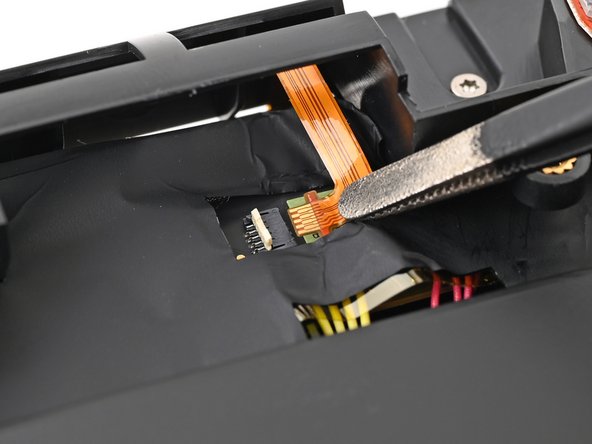
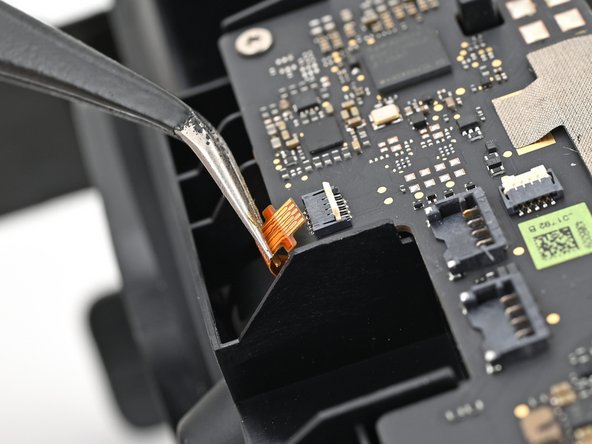
    • Use tweezers, or your fingers, to pull the microphone cable straight out of its socket.

  21. Daughterboard Disconnection, Disconnect the sensor array: step 21, image 1 of 2 Daughterboard Disconnection, Disconnect the sensor array: step 21, image 2 of 2
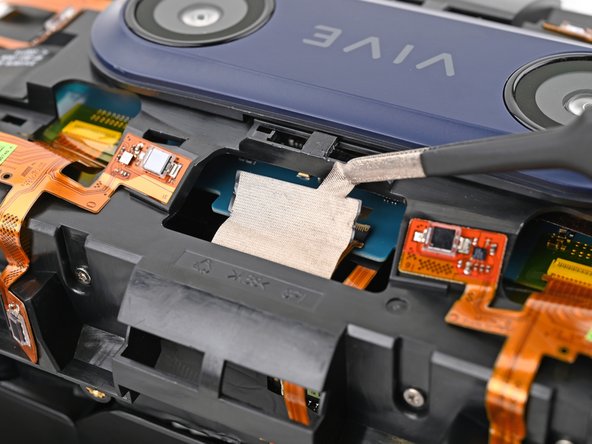
    • Use tweezers, or your fingers, to peel the conductive fabric off the sensor array ZIF connector on the motherboard.

  22. Daughterboard Disconnection: step 22, image 1 of 2 Daughterboard Disconnection: step 22, image 2 of 2
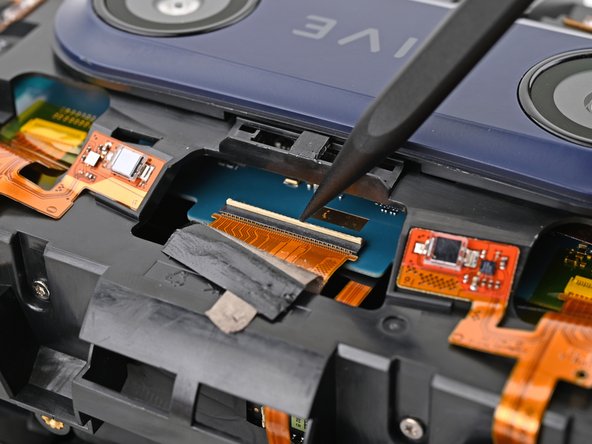
    • Use your spudger, or a clean fingernail, to flip up the locking tab on the sensor array ZIF connector.

  23. Daughterboard Disconnection: step 23, image 1 of 1
    • Use your fingers to grip the left and right sides of the sensor array cable and pull it straight out of its socket.

  24. Daughterboard Disconnection, Remove the sensor array screws: step 24, image 1 of 2 Daughterboard Disconnection, Remove the sensor array screws: step 24, image 2 of 2
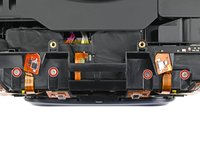
    • Use a T5 Torx screwdriver to remove the four 3.0 mm‑long screws securing the top of the sensor array.

  25. Daughterboard Disconnection: step 25, image 1 of 3 Daughterboard Disconnection: step 25, image 2 of 3 Daughterboard Disconnection: step 25, image 3 of 3
    • Use a T6 Torx screwdriver to remove the four 3.8 mm‑long screws securing the front of the sensor array.

  26. Daughterboard Disconnection, Remove the sensor array: step 26, image 1 of 2 Daughterboard Disconnection, Remove the sensor array: step 26, image 2 of 2
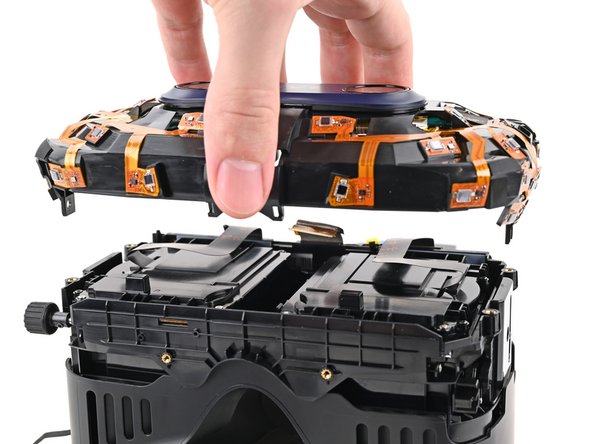
    • Lift the sensor array straight off the lens assembly and remove it, making sure you thread the cable through its slot.

    • During reassembly, make sure the sensor assembly cable is threaded through its slot before continuing.

  27. Daughterboard Disconnection, Remove the thermal pad: step 27, image 1 of 3 Daughterboard Disconnection, Remove the thermal pad: step 27, image 2 of 3 Daughterboard Disconnection, Remove the thermal pad: step 27, image 3 of 3
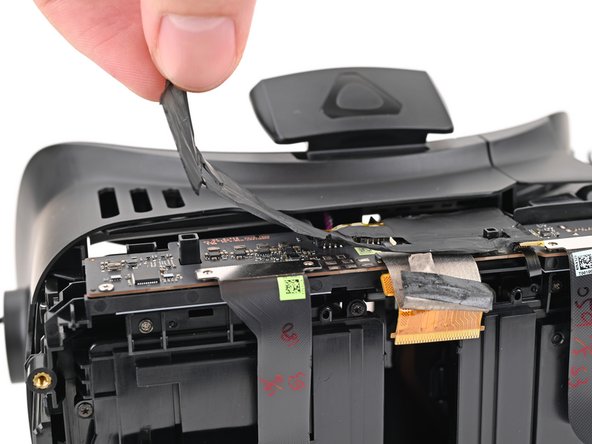
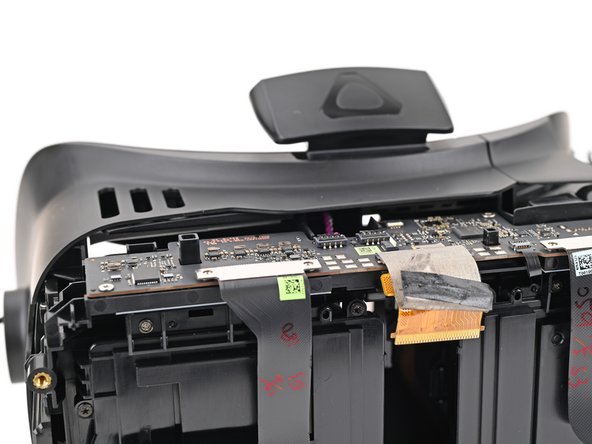
    • Use your fingers to peel up the thermal pad covering the daughterboard.

    • The thermal pad will likely remove the Kapton tape from the ZIF connectors on the daughterboard. Replace the Kapton tape if necessary.

    • Set aside the thermal pad. You'll reuse it during reassembly.

  28. Daughterboard Disconnection, Disconnect the lens assembly: step 28, image 1 of 3 Daughterboard Disconnection, Disconnect the lens assembly: step 28, image 2 of 3 Daughterboard Disconnection, Disconnect the lens assembly: step 28, image 3 of 3
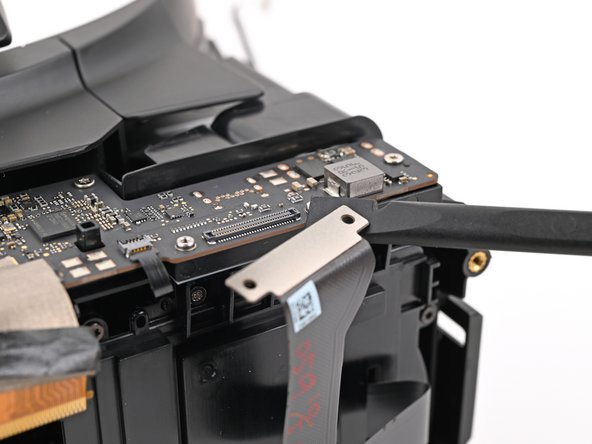
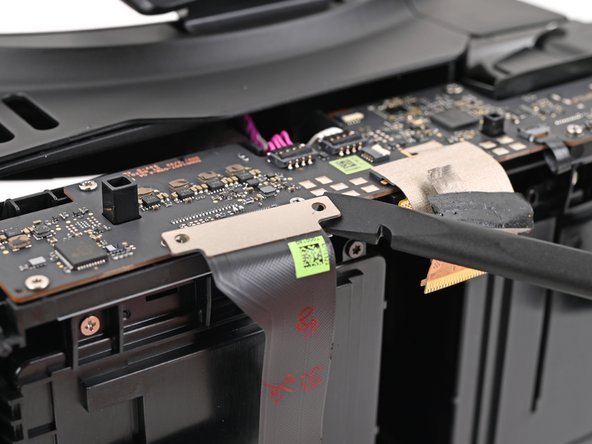
    • Insert the flat end of a spudger under a corner of the lens assembly press connector.

    • Don't insert your spudger anywhere else, as you risk dislodging nearby surface-mounted components.

    • Twist the spudger to lift the press connector up and disconnect it.

    • Repeat the same process to disconnect the other lens assembly press connector.

    • To re-attach press connectors like this one, carefully align and press down on one side until it clicks into place, then repeat on the other side. Don't press down in the middle. If the connector is misaligned, the pins can bend and cause permanent damage.

  29. Daughterboard Disconnection, Disconnect the IPD sensor: step 29, image 1 of 2 Daughterboard Disconnection, Disconnect the IPD sensor: step 29, image 2 of 2
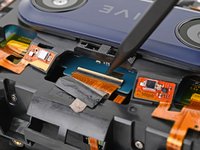
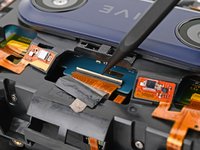
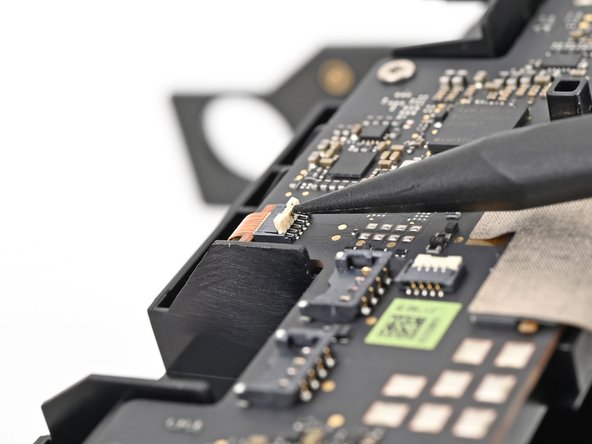
    • Use the point of a spudger to lift up the locking tab on the IPD sensor ZIF connector.

  30. Daughterboard Disconnection: step 30, image 1 of 2 Daughterboard Disconnection: step 30, image 2 of 2
    • Use tweezers, or your fingers, to pull the IPD sensor cable straight out of its socket.

  31. Daughterboard Disconnection, Disconnect the proximity sensor: step 31, image 1 of 2 Daughterboard Disconnection, Disconnect the proximity sensor: step 31, image 2 of 2
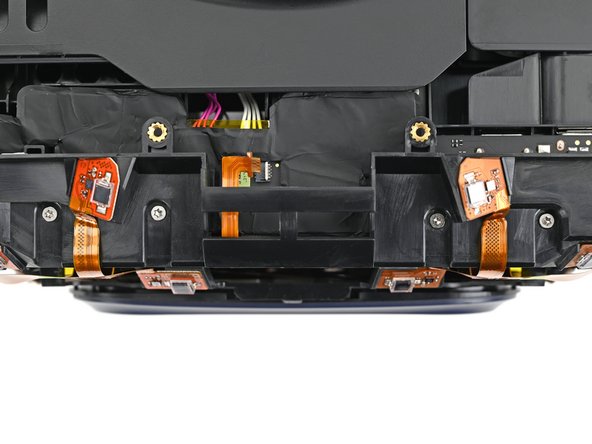
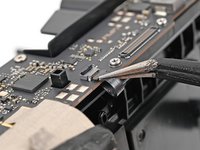
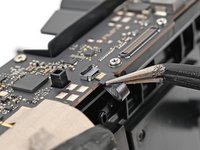
    • Use the point of a spudger to lift up the locking tab on the proximity sensor ZIF connector.

  32. Daughterboard Disconnection: step 32, image 1 of 2 Daughterboard Disconnection: step 32, image 2 of 2
    • Use tweezers, or your fingers, to pull the proximity sensor cable straight out of its socket.

Conclusion

To reassemble your device, follow these instructions in reverse order.

Alex Diaz-Kokaisl

Member since: 01/16/22

215,168 Reputation

1,046 Guides authored

Team

iFixit Member of iFixit

Staff

123 Members

23,788 Guides authored

0 Guide Comments

Add Comment

View Statistics:

Past 24 Hours: 0

Past 7 Days: 2

Past 30 Days: 3

All Time: 51