Free Shipping on Domestic Orders $75+

Discipline 65 Keyboard Switch Replacement

What you need

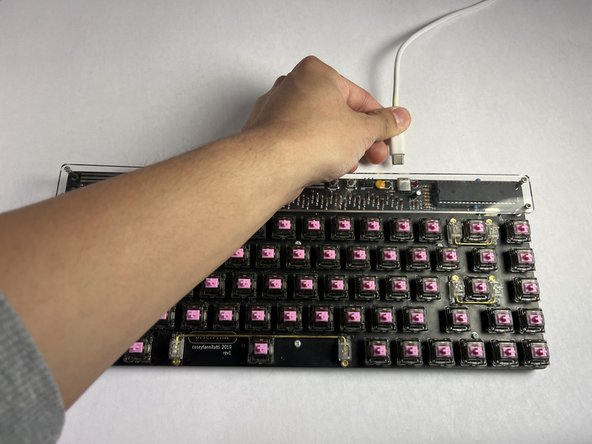
  1. Discipline 65 Keyboard Switch Replacement, Keyboard Switch: step 1, image 1 of 3 Discipline 65 Keyboard Switch Replacement, Keyboard Switch: step 1, image 2 of 3 Discipline 65 Keyboard Switch Replacement, Keyboard Switch: step 1, image 3 of 3
    • Plug the keyboard into the computer.

  2. Discipline 65 Keyboard Switch Replacement: step 2, image 1 of 3 Discipline 65 Keyboard Switch Replacement: step 2, image 2 of 3 Discipline 65 Keyboard Switch Replacement: step 2, image 3 of 3
    • Locate the faulty key or keys by pressing on them. Use an online keyboard tester to determine if the switch is working.

    • If keypress is not registered when a key is pressed, that switch needs to be replaced.

    • Keep note of where the faulty key or keys are.

  3. Discipline 65 Keyboard Switch Replacement: step 3, image 1 of 3 Discipline 65 Keyboard Switch Replacement: step 3, image 2 of 3 Discipline 65 Keyboard Switch Replacement: step 3, image 3 of 3
    • Pull each key off of the keyboard using your fingers or a key cap puller and place in a safe spot.

    • There shouldn't be a key left on the keyboard before moving forward.

    • Taking a picture of the keyboard before removal could be helpful for when reapplying the keys later.

  4. Discipline 65 Keyboard Switch Replacement: step 4, image 1 of 2 Discipline 65 Keyboard Switch Replacement: step 4, image 2 of 2
    • Unplug the keyboard from the computer.

  5. Discipline 65 Keyboard Switch Replacement: step 5, image 1 of 2 Discipline 65 Keyboard Switch Replacement: step 5, image 2 of 2
    • Flip over the keyboard so the front is face down.

  6. Discipline 65 Keyboard Switch Replacement: step 6, image 1 of 3 Discipline 65 Keyboard Switch Replacement: step 6, image 2 of 3 Discipline 65 Keyboard Switch Replacement: step 6, image 3 of 3
    • Remove ten 4 mm Phillips #0 screws using the Phillips #0 screwdriver.

    • All these screws are the same type and size. There is no need to track where you unscrewed each specific screw from.

  7. Discipline 65 Keyboard Switch Replacement: step 7, image 1 of 3 Discipline 65 Keyboard Switch Replacement: step 7, image 2 of 3 Discipline 65 Keyboard Switch Replacement: step 7, image 3 of 3
    • Remove the lid and set to the side.

  8. Discipline 65 Keyboard Switch Replacement: step 8, image 1 of 3 Discipline 65 Keyboard Switch Replacement: step 8, image 2 of 3 Discipline 65 Keyboard Switch Replacement: step 8, image 3 of 3
    • Use the soldering iron and desoldering pump to desolder the two pins corresponding to the faulty switch.

    • Work in a well-ventilated place, soldering fumes are toxic.

    • Ensure that you are comfortable with soldering before beginning. Improper technique can permanently damage the keyboard.

  9. Discipline 65 Keyboard Switch Replacement: step 9, image 1 of 2 Discipline 65 Keyboard Switch Replacement: step 9, image 2 of 2
    • Flip the keyboard back over so the front is face up.

  10. Discipline 65 Keyboard Switch Replacement: step 10, image 1 of 3 Discipline 65 Keyboard Switch Replacement: step 10, image 2 of 3 Discipline 65 Keyboard Switch Replacement: step 10, image 3 of 3
    • Pull off the faulty switch or switches by pulling firmly straight up.

  11. Discipline 65 Keyboard Switch Replacement: step 11, image 1 of 3 Discipline 65 Keyboard Switch Replacement: step 11, image 2 of 3 Discipline 65 Keyboard Switch Replacement: step 11, image 3 of 3
    • Reinsert the new switch or switches, by lining up the switch pins with the holes in the keyboard and pushing straight down.

    • Ensure that the pins of the switch line up with the holes in the keyboard. Improper insertion can bend and damage the switch pins.

    • Make sure that the switch is vertical and push straight down. Not doing this may damage the switch pins.

  12. Discipline 65 Keyboard Switch Replacement: step 12, image 1 of 2 Discipline 65 Keyboard Switch Replacement: step 12, image 2 of 2
    • Flip over the keyboard so it is face down.

  13. Discipline 65 Keyboard Switch Replacement: step 13, image 1 of 3 Discipline 65 Keyboard Switch Replacement: step 13, image 2 of 3 Discipline 65 Keyboard Switch Replacement: step 13, image 3 of 3
    • Solder newly inserted switches to the PCB, using the soldering iron and solder.

  14. Discipline 65 Keyboard Switch Replacement: step 14, image 1 of 2 Discipline 65 Keyboard Switch Replacement: step 14, image 2 of 2
    • Place the lid to the back of the keyboard back to its original position.

  15. Discipline 65 Keyboard Switch Replacement: step 15, image 1 of 3 Discipline 65 Keyboard Switch Replacement: step 15, image 2 of 3 Discipline 65 Keyboard Switch Replacement: step 15, image 3 of 3
    • Screw in all ten 4 mm Phillips #0 screws.

  16. Discipline 65 Keyboard Switch Replacement: step 16, image 1 of 2 Discipline 65 Keyboard Switch Replacement: step 16, image 2 of 2
    • Flip the keyboard back over so the front is face up.

  17. Discipline 65 Keyboard Switch Replacement: step 17, image 1 of 3 Discipline 65 Keyboard Switch Replacement: step 17, image 2 of 3 Discipline 65 Keyboard Switch Replacement: step 17, image 3 of 3
    • Reinsert each key to its original position.

  18. Discipline 65 Keyboard Switch Replacement: step 18, image 1 of 1
    • Test to make sure the faulty key of keys work again.

    • The keyboard should be ready to use again.

Conclusion

Enjoy your typing!

Andrew Lam

Member since: 04/15/24

277 Reputation

1 Guide authored

Team

UC Davis, Team 1-7, Morris Spring 2024 Member of UC Davis, Team 1-7, Morris Spring 2024

UCD-MORRIS-S24S1G7

3 Members

1 Guide authored

0 Guide Comments

Add Comment

View Statistics:

Past 24 Hours: 1

Past 7 Days: 2

Past 30 Days: 8

All Time: 120