Free Shipping on Domestic Orders $75+

HP ProBook 450 G4 Keyboard Replacement

What you need

  1. HP ProBook 450 G4 Keyboard Replacement, Hard Drive: step 1, image 1 of 2 HP ProBook 450 G4 Keyboard Replacement, Hard Drive: step 1, image 2 of 2
    • Power your laptop off.

    • Flip the laptop over.

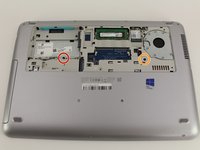
    • Orient the laptop so the two vents on the bottom face upward and are further away from you.

  2. HP ProBook 450 G4 Keyboard Replacement: step 2, image 1 of 3 HP ProBook 450 G4 Keyboard Replacement: step 2, image 2 of 3 HP ProBook 450 G4 Keyboard Replacement: step 2, image 3 of 3
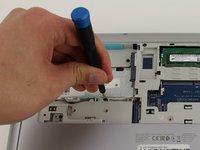
    • Use the Phillips #0 screwdriver to remove the 6.8 mm screw that secures the vent panel to the laptop.

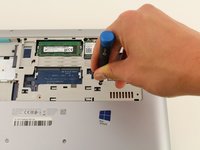
    • Use the spudger to separate the vent panel from the laptop.

    • Slide the vent panel off the backside of the laptop.

  3. HP ProBook 450 G4 Keyboard Replacement: step 3, image 1 of 2 HP ProBook 450 G4 Keyboard Replacement: step 3, image 2 of 2
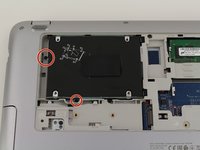
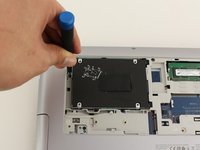
    • Use the Phillips #0 screwdriver to remove the black 3.2mm screw that secures the hard drive to the left side of the laptop.

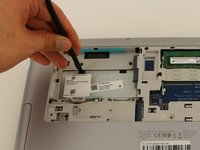
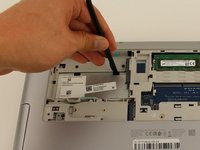
  4. HP ProBook 450 G4 Keyboard Replacement: step 4, image 1 of 2 HP ProBook 450 G4 Keyboard Replacement: step 4, image 2 of 2
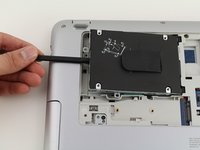
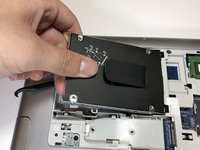
    • Use the spudger to lift the left side of the hard drive up.

    • Pull the hard drive diagonally to the left to release the hard drive from the laptop.

  5. HP ProBook 450 G4 Keyboard Replacement, Keyboard: step 5, image 1 of 3 HP ProBook 450 G4 Keyboard Replacement, Keyboard: step 5, image 2 of 3 HP ProBook 450 G4 Keyboard Replacement, Keyboard: step 5, image 3 of 3
    • Remove the 6.6mm T8 Torx screw located below where the hard drive used to be.

    • Remove the 6.6mm T8 Torx screw located below and to the left of the circular, silver and black fan.

  6. HP ProBook 450 G4 Keyboard Replacement: step 6, image 1 of 3 HP ProBook 450 G4 Keyboard Replacement: step 6, image 2 of 3 HP ProBook 450 G4 Keyboard Replacement: step 6, image 3 of 3
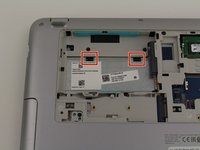
    • Use the spudger to press down on the two black tabs that are underneath where the hard drive used to be.

    • Apply pressure to the black tabs until they release and pop out.

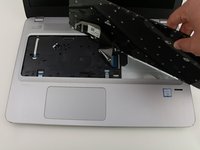
  7. HP ProBook 450 G4 Keyboard Replacement: step 7, image 1 of 3 HP ProBook 450 G4 Keyboard Replacement: step 7, image 2 of 3 HP ProBook 450 G4 Keyboard Replacement: step 7, image 3 of 3
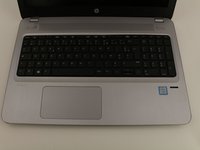
    • Orient the laptop so the keyboard is facing upwards and towards you.

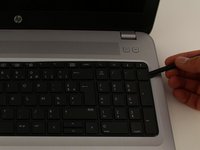
    • Insert the spudger in between the edge of the keyboard and the computer frame.

    • Slide the spudger around the edge of the keyboard until the keyboard is loose.

    • Gently pull the keyboard away from the body of the laptop.

    • Do not pull the keyboard all the way off because there is still a connector cable underneath that needs to be disconnected.

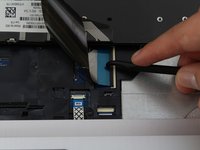
  8. HP ProBook 450 G4 Keyboard Replacement: step 8, image 1 of 2 HP ProBook 450 G4 Keyboard Replacement: step 8, image 2 of 2
    • Use a spudger to gently lift up the black locking bar on the keyboard connector.

    • Slide the keyboard ribbon out of the connector.

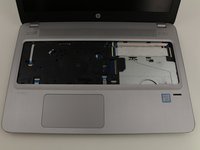
    • Remove the keyboard.

    • To re-attach the keyboard ribbon, slide it into the connector and swing the locking bar down.

Conclusion

To reassemble your device, follow these instructions in reverse order.

2 other people completed this guide.

Sebastian Dow

Member since: 01/23/20

1,082 Reputation

6 Guides authored

Team

Cal Poly, Team S1-G3, White Winter 2020 Member of Cal Poly, Team S1-G3, White Winter 2020

CPSU-WHITE-W20S1G3

4 Members

18 Guides authored

0 Guide Comments

Add Comment

View Statistics:

Past 24 Hours: 7

Past 7 Days: 33

Past 30 Days: 144

All Time: 9,026