Interconnect Cable Removal

Prerequisite Only
This is a prerequisite-only guide! This guide is part of another procedure and isn’t meant to be used alone.

What you need

  1. Interconnect Cable Removal, Heat the right edge: step 1, image 1 of 1
    • Heat an iOpener and apply it to the right edge of the back cover for two minutes to soften the adhesive.

    • A hair dryer, heat gun, or hot plate may also be used, but be careful not to overheat the phone—the display and internal battery are susceptible to heat damage.

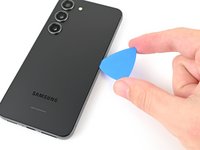
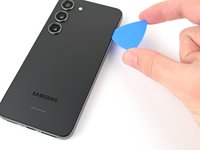
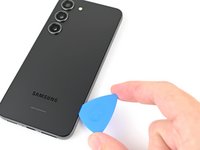
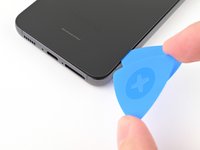
  2. Interconnect Cable Removal, Insert an opening pick: step 2, image 1 of 3 Interconnect Cable Removal, Insert an opening pick: step 2, image 2 of 3 Interconnect Cable Removal, Insert an opening pick: step 2, image 3 of 3
    • Apply a suction handle to the back cover, as close to the center of the right edge as possible.

    • Pull up on the suction handle with strong, steady force to create a gap between the cover and the frame.

    • If you have trouble creating a gap, apply more heat to further soften the adhesive. Follow the iOpener instructions to avoid overheating.

    • Insert an opening pick into the gap.

  3. Interconnect Cable Removal, Separate the right adhesive: step 3, image 1 of 3 Interconnect Cable Removal, Separate the right adhesive: step 3, image 2 of 3 Interconnect Cable Removal, Separate the right adhesive: step 3, image 3 of 3
    • Slide the pick back and forth along the right edge to separate the adhesive.

    • Leave the pick inserted near the bottom right corner to prevent the adhesive from resealing.

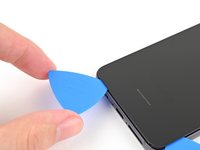
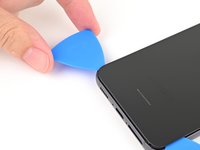
  4. Interconnect Cable Removal, Heat the bottom edge: step 4, image 1 of 1
    • Apply a heated iOpener to the bottom edge of the back cover for two minutes.

  5. Interconnect Cable Removal, Separate the corner adhesive: step 5, image 1 of 3 Interconnect Cable Removal, Separate the corner adhesive: step 5, image 2 of 3 Interconnect Cable Removal, Separate the corner adhesive: step 5, image 3 of 3
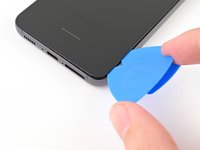
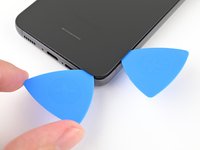
    • Insert a second opening pick at the bottom right corner.

    • Rotate it around the bottom right corner to separate the adhesive.

  6. Interconnect Cable Removal, Separate the bottom adhesive: step 6, image 1 of 2 Interconnect Cable Removal, Separate the bottom adhesive: step 6, image 2 of 2
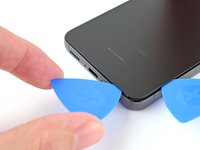
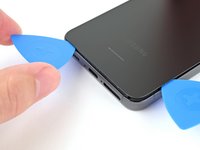
    • Slide your opening pick to the bottom left corner to separate the adhesive.

    • Leave the pick in the bottom left corner to prevent the adhesive from resealing.

  7. Interconnect Cable Removal, Heat the left edge: step 7, image 1 of 1
    • Apply a heated iOpener to the left edge of the back cover for two minutes.

  8. Interconnect Cable Removal, Separate the corner adhesive: step 8, image 1 of 2 Interconnect Cable Removal, Separate the corner adhesive: step 8, image 2 of 2
    • Rotate the opening pick around the bottom left corner to separate the adhesive.

  9. Interconnect Cable Removal, Separate the left adhesive: step 9, image 1 of 3 Interconnect Cable Removal, Separate the left adhesive: step 9, image 2 of 3 Interconnect Cable Removal, Separate the left adhesive: step 9, image 3 of 3
    • Insert a third opening pick at the bottom left corner.

    • Slide your pick toward the top left corner to separate the adhesive.

    • Leave the pick in the top left corner to prevent the adhesive from resealing.

  10. Interconnect Cable Removal, Heat the top edge: step 10, image 1 of 1
    • Heat an iOpener and apply it to the top edge of the back cover for two minutes.

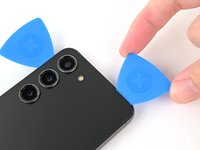
  11. Interconnect Cable Removal, Separate the corner adhesive: step 11, image 1 of 3 Interconnect Cable Removal, Separate the corner adhesive: step 11, image 2 of 3 Interconnect Cable Removal, Separate the corner adhesive: step 11, image 3 of 3
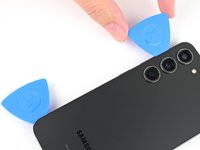
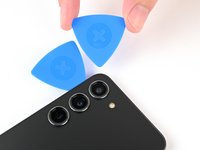
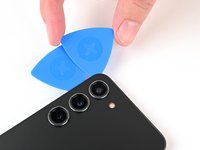
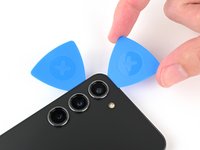
    • Insert a fourth opening pick at the top left corner.

    • Rotate it around the top left corner to separate the adhesive.

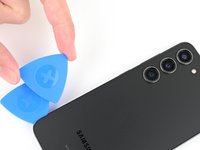
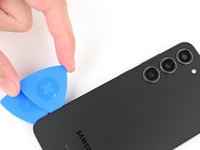
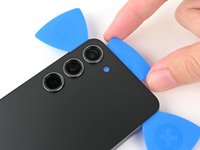
  12. Interconnect Cable Removal, Separate the top adhesive: step 12, image 1 of 2 Interconnect Cable Removal, Separate the top adhesive: step 12, image 2 of 2
    • Slide your opening pick to the top right corner to separate the adhesive.

    • Leave the pick in the top right corner to prevent the adhesive from resealing.

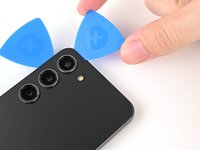
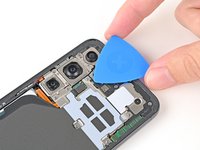
  13. Interconnect Cable Removal, Separate the flash adhesive: step 13, image 1 of 3 Interconnect Cable Removal, Separate the flash adhesive: step 13, image 2 of 3 Interconnect Cable Removal, Separate the flash adhesive: step 13, image 3 of 3
    • There's a remaining patch of adhesive directly under the flash.

    • Line up the tip of an opening pick with the flash cutout.

    • Slide the opening pick under the top of the back cover until you feel it start to snag on the adhesive.

    • You should see the opening pick through the flash cutout.

    • Keep sliding the pick toward the bottom of the phone until you feel the adhesive completely separate from the back cover.

    • Avoid touching the rear cameras with your pick. Pushing against the lenses risks damaging them.

  14. Interconnect Cable Removal, Remove the back cover: step 14, image 1 of 3 Interconnect Cable Removal, Remove the back cover: step 14, image 2 of 3 Interconnect Cable Removal, Remove the back cover: step 14, image 3 of 3
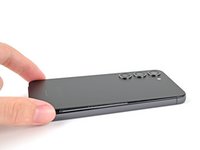
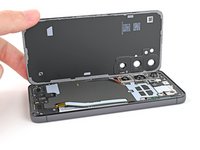
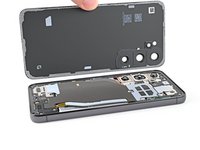
    • Grab and remove the back cover.

    • If your cover is still sticking to the frame, slide an opening pick around the perimeter until the cover completely separates.

    • During reassembly:

    • This is a good point to power on your phone and test all functions before sealing it up. Be sure to power your phone back down completely before you continue working.

    • Remove any adhesive chunks with a pair of tweezers or your fingers. Apply heat and isopropyl alcohol (90% or greater) if you're having trouble removing the adhesive.

    • If you're using custom-cut adhesives, follow this guide.

    • If you're using double-sided tape, follow this guide.

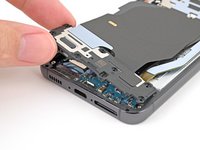
  15. Interconnect Cable Removal, Disconnect the wireless charging coil: step 15, image 1 of 2 Interconnect Cable Removal, Disconnect the wireless charging coil: step 15, image 2 of 2
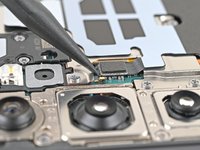
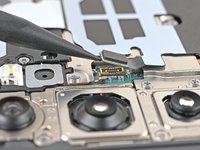
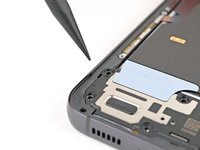
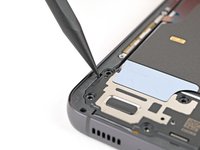
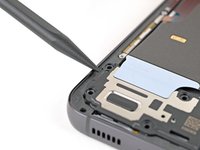
    • Use the point of your spudger to pry up and disconnect the wireless charging coil press connector from the motherboard.

    • To re-attach press connectors, carefully align and press down on one side until it clicks into place, then repeat on the other side. Don't press down on the middle. If the connector is misaligned, the pins can bend and cause permanent damage.

  16. Interconnect Cable Removal, Remove the wireless charging coil and loudspeaker screws: step 16, image 1 of 3 Interconnect Cable Removal, Remove the wireless charging coil and loudspeaker screws: step 16, image 2 of 3 Interconnect Cable Removal, Remove the wireless charging coil and loudspeaker screws: step 16, image 3 of 3
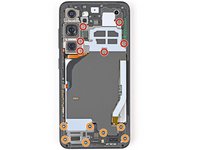
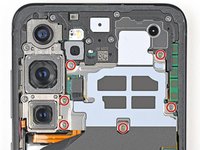
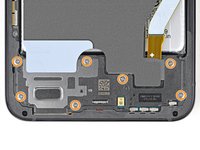
    • Use a Phillips screwdriver to remove the thirteen 3.5 mm‑long screws securing the wireless charging coil and the loudspeaker:

    • Six screws securing the wireless charging coil

    • Seven screws securing the loudspeaker

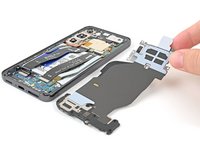
  17. Interconnect Cable Removal, Remove the wireless charging coil and loudspeaker: step 17, image 1 of 3 Interconnect Cable Removal, Remove the wireless charging coil and loudspeaker: step 17, image 2 of 3 Interconnect Cable Removal, Remove the wireless charging coil and loudspeaker: step 17, image 3 of 3
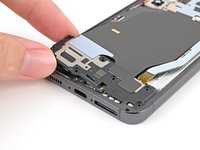
    • Insert the point of your spudger in the notch at the top left corner of the loudspeaker.

    • Pry up to unclip the loudspeaker from the frame.

  18. Interconnect Cable Removal: step 18, image 1 of 3 Interconnect Cable Removal: step 18, image 2 of 3 Interconnect Cable Removal: step 18, image 3 of 3
    • Use your fingers to lift the loudspeaker away from the frame to fully separate it.

    • Remove the wireless charging coil and loudspeaker from the frame.

    • During reassembly, press around the perimeter of the loudspeaker to clip it to the frame.

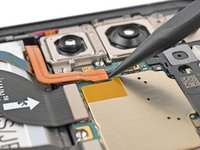
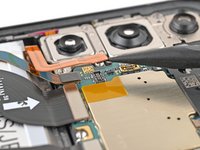
  19. Interconnect Cable Removal, Disconnect the battery: step 19, image 1 of 2 Interconnect Cable Removal, Disconnect the battery: step 19, image 2 of 2
    • Use the point of your spudger to pry up and disconnect the battery press connector.

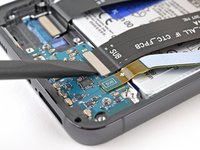
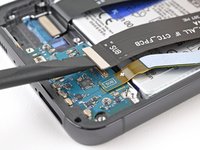
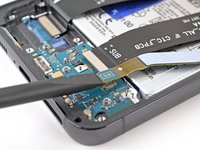
  20. Interconnect Cable Removal, Disconnect the interconnect cables: step 20, image 1 of 3 Interconnect Cable Removal, Disconnect the interconnect cables: step 20, image 2 of 3 Interconnect Cable Removal, Disconnect the interconnect cables: step 20, image 3 of 3
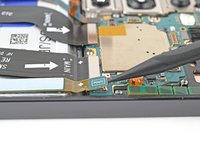
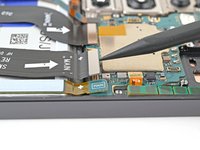
    • Use your spudger to pry up and disconnect the primary and secondary interconnect cable press connectors from the daughterboard.

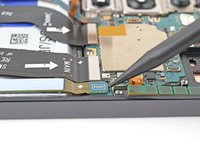
  21. Interconnect Cable Removal: step 21, image 1 of 3 Interconnect Cable Removal: step 21, image 2 of 3 Interconnect Cable Removal: step 21, image 3 of 3
    • Repeat the previous step for the primary and secondary interconnect cable connectors on the motherboard.

  22. Interconnect Cable Removal, Remove the interconnect cables: step 22, image 1 of 2 Interconnect Cable Removal, Remove the interconnect cables: step 22, image 2 of 2
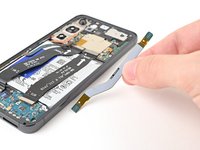
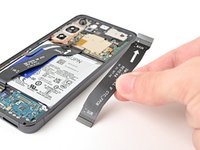
    • Remove both interconnect cables.

Conclusion

To reassemble your device, follow these instructions in reverse order.

Alex Diaz-Kokaisl

Member since: 01/16/22

215,458 Reputation

1,046 Guides authored

Team

iFixit Member of iFixit

Staff

123 Members

23,790 Guides authored

0 Guide Comments

Add Comment

View Statistics:

Past 24 Hours: 0

Past 7 Days: 0

Past 30 Days: 0

All Time: 82