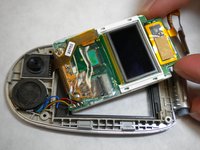
LG VX6000 Screen Replacement

What you need

  1. LG VX6000 Screen Replacement, Battery: step 1, image 1 of 1
    • Locate the dark gray tab on the back of the phone.

    • Push the tab towards the top of the phone to release the battery.

  2. LG VX6000 Screen Replacement: step 2, image 1 of 1
    • Lift and rotate the battery away from the bottom edge.

    • Remove the battery.

  3. LG VX6000 Screen Replacement, Body: step 3, image 1 of 1
    Tool used on this step:
    Tweezers
    $4.99
    Buy
    • Carefully use tweezers to remove the two rubber cushions located at the top of the phone.

    • Only remove the two cushions that are circled!

  4. LG VX6000 Screen Replacement: step 4, image 1 of 1
    • Use a Phillips #00 screwdriver to remove the six screws highlighted on the back of the phone.

    • Place the screws on an uncluttered surface or in a small container.

  5. LG VX6000 Screen Replacement: step 5, image 1 of 1
    • Carefully remove the back of the phone with your fingernails or tweezers.

    • There are red and blue wires connected to the motherboard. Forcing the components apart could damage the wires.

    • The red and blue wires must be plugged in to reassemble.

  6. LG VX6000 Screen Replacement, Logic Board: step 6, image 1 of 1
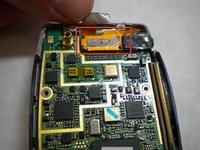
    • Carefully peel away the adhesive tab.

    • The tab should not be completely separated from the phone.

  7. LG VX6000 Screen Replacement: step 7, image 1 of 2 LG VX6000 Screen Replacement: step 7, image 2 of 2
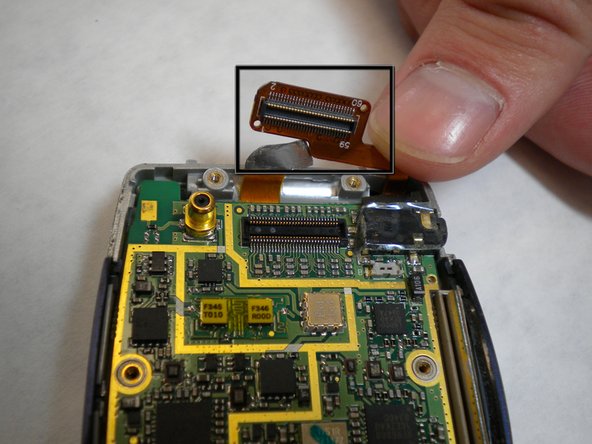
    • Locate the yellow connection towards the top of the phone. This is directly connected to the screen.

    • Carefully pry the connector away from the motherboard to remove it from the phone.

    • Do not pull forcefully

  8. LG VX6000 Screen Replacement: step 8, image 1 of 1
    • Gently lift the corner of the motherboard away from the casing.

  9. LG VX6000 Screen Replacement, Screen: step 9, image 1 of 3 LG VX6000 Screen Replacement, Screen: step 9, image 2 of 3 LG VX6000 Screen Replacement, Screen: step 9, image 3 of 3
    Tool used on this step:
    Tweezers
    $4.99
    Buy
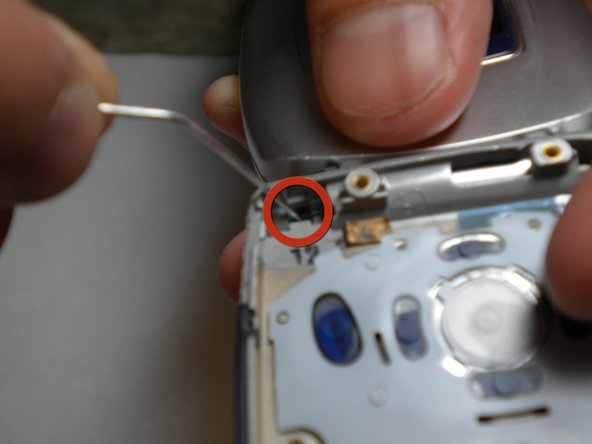
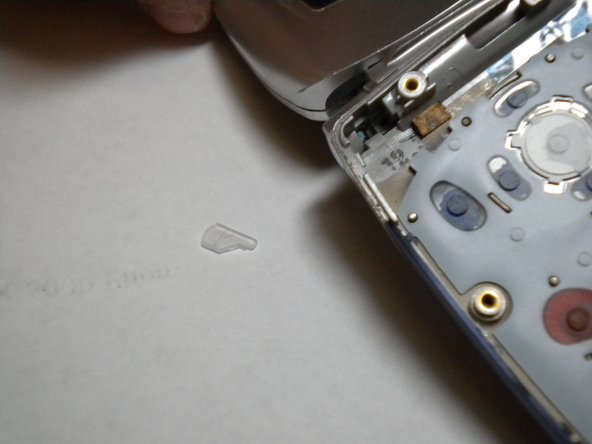
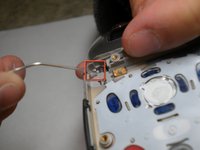
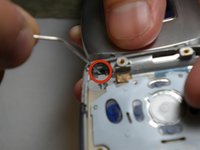
    • Using a paper clip or tweezers, pop out the screen by pressing the plastic tab in the top-left corner of the phone's bottom casing as indicated in the photo.

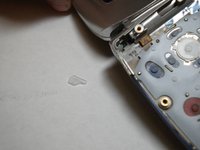
    • Be careful not to lose the tab that pops out. It is a small and clear piece of plastic.

    • The tab is fragile, handle with care.

  10. LG VX6000 Screen Replacement: step 10, image 1 of 3 LG VX6000 Screen Replacement: step 10, image 2 of 3 LG VX6000 Screen Replacement: step 10, image 3 of 3
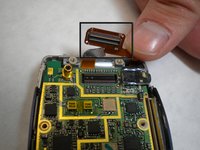
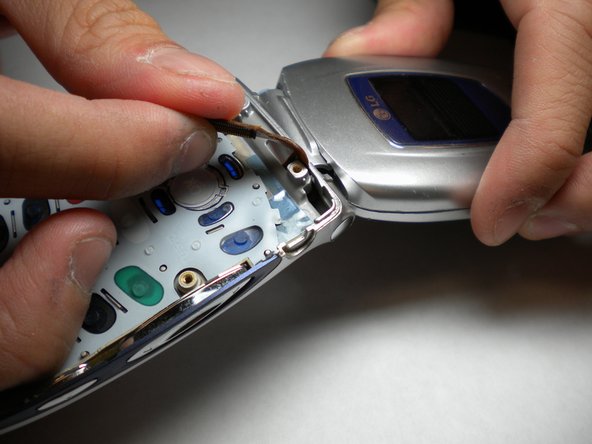
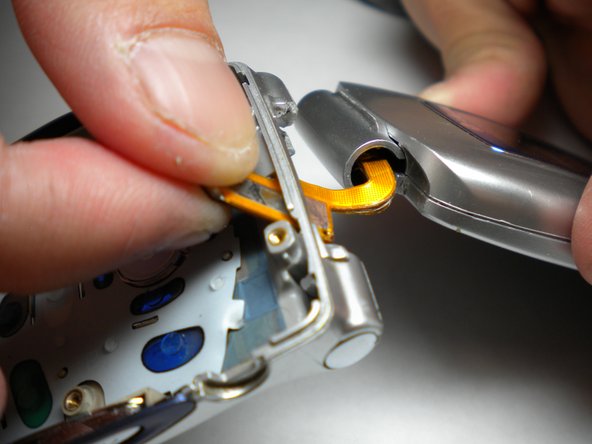
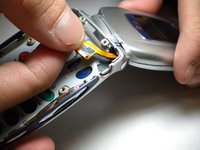
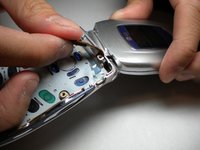
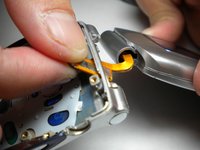
    • As shown in the photos, pull the orange strip through a thin opening at the top of the phone. Once this is done, the top and bottom halves can be separated.

  11. LG VX6000 Screen Replacement: step 11, image 1 of 1
    • Set the bottom half of the phone aside.

    • Using tweezers, pull off the small rubber cushions located towards the four corners of the screen.

  12. LG VX6000 Screen Replacement: step 12, image 1 of 1
    • With a Phillips tip screwdriver, unscrew the four newly exposed screws.

    • Keep screws from the different steps in different locations so as to not mix them up.

  13. LG VX6000 Screen Replacement: step 13, image 1 of 3 LG VX6000 Screen Replacement: step 13, image 2 of 3 LG VX6000 Screen Replacement: step 13, image 3 of 3
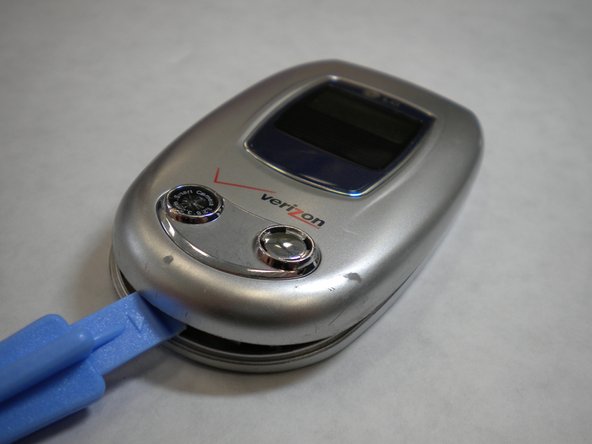
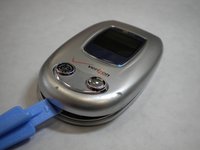
    • Carefully open the casing using the iFixit plastic tool by prying each side a little bit at a time. Rotate and open until all the inside clips pop open and the casing opens up.

  14. LG VX6000 Screen Replacement: step 14, image 1 of 2 LG VX6000 Screen Replacement: step 14, image 2 of 2
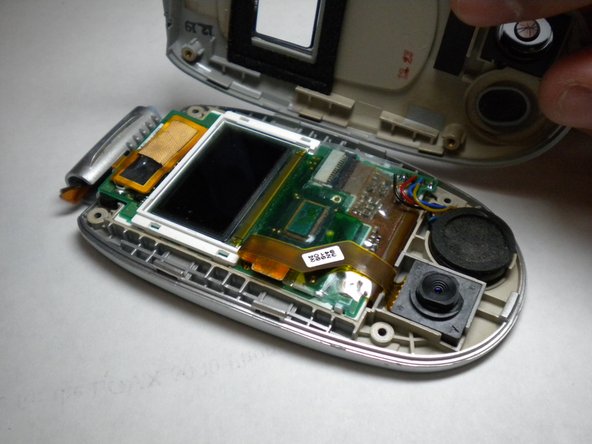
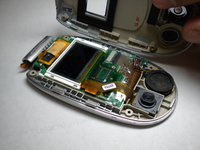
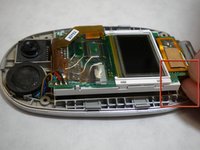
    • After you pry open the casing, you will be left with the screen and circuit board in the top face plate.

    • Gently pull the corner of screen and circuit board up and out of casing to remove screen from the top face plate.

    • Do not try to completely separate the circuit board from the casing. There are still wires connecting the two.

  15. LG VX6000 Screen Replacement: step 15, image 1 of 1
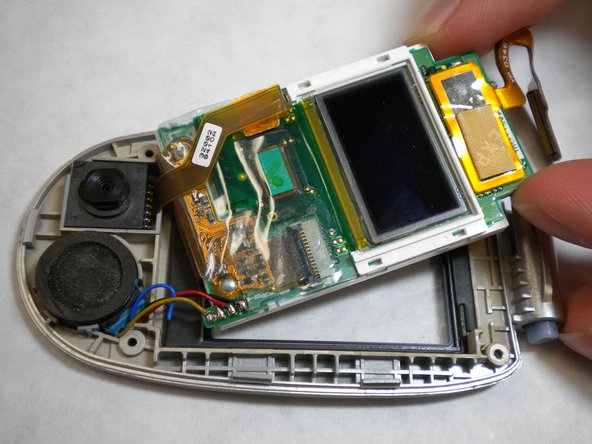
    • Rotate the screen and the connected white frame away from the logic board.

    • Carefully peel the adhesive tape that connects the screen and logic board off. The screen can now be removed and replaced with a new screen unit.

Conclusion

To reassemble your device, follow these instructions in reverse order.

Adam Altman

Member since: 01/14/10

1 Reputation

3 Guides authored

Team

Cal Poly, Team 4-11, Forte Winter 2010 Member of Cal Poly, Team 4-11, Forte Winter 2010

CPSU-FORTE-W10S4G11

5 Members

11 Guides authored

0 Guide Comments

Add Comment

View Statistics:

Past 24 Hours: 0

Past 7 Days: 5

Past 30 Days: 10

All Time: 2,874