Free Shipping on Domestic Orders $75+

Palm Treo 680 screen replacement

What you need

  1. Palm Treo 680 screen replacement, Battery: step 1, image 1 of 2 Palm Treo 680 screen replacement, Battery: step 1, image 2 of 2
    • Remove the battery cover by pressing on the small rectangular button located on the back of the phone.

  2. Palm Treo 680 screen replacement: step 2, image 1 of 1
    • Remove the battery by pulling it out towards you.

  3. Palm Treo 680 screen replacement, Back Panel: step 3, image 1 of 2 Palm Treo 680 screen replacement, Back Panel: step 3, image 2 of 2
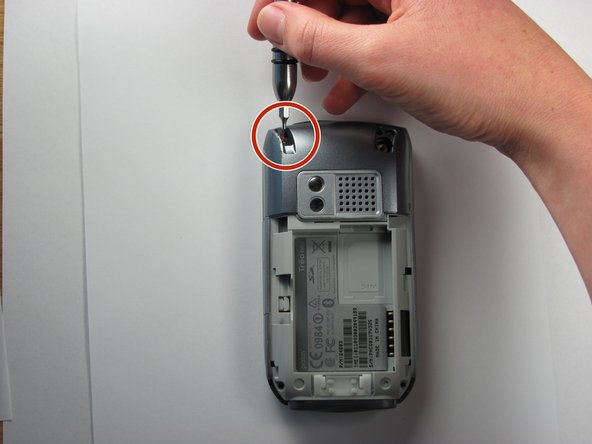
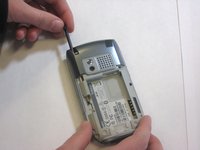
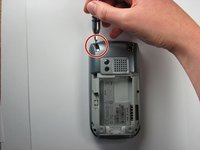
    • Remove the stylus in order to access the screw.

    • Remove the 27mm top-left screw using a T6 Torx screwdriver.

  4. Palm Treo 680 screen replacement: step 4, image 1 of 2 Palm Treo 680 screen replacement: step 4, image 2 of 2
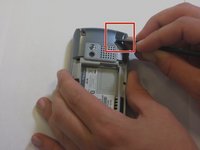
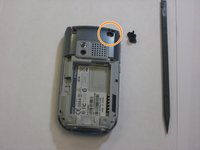
    • Using the spudger, remove the rubber rectangular cover located in the upper rear, right-hand corner.

    • Remove the 27mm screw using the T6 Torx screwdriver.

    • If there is a red Palm sticker covering this screw, puncture it to access the screw.

  5. Palm Treo 680 screen replacement: step 5, image 1 of 1
    • Remove the remaining two 27mm screws from the bottom using the T6 screwdriver.

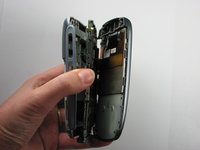
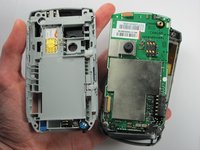
  6. Palm Treo 680 screen replacement: step 6, image 1 of 3 Palm Treo 680 screen replacement: step 6, image 2 of 3 Palm Treo 680 screen replacement: step 6, image 3 of 3
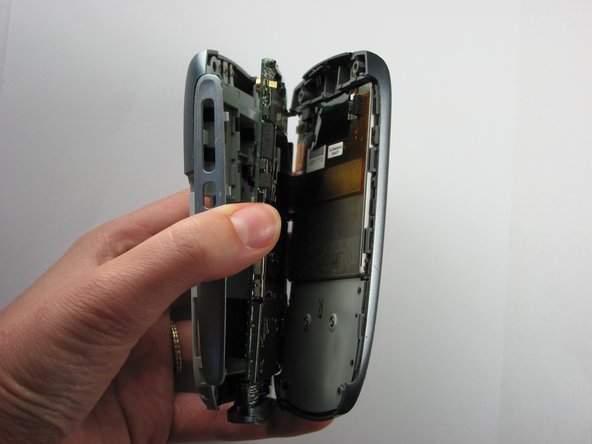
    • Turn the phone so the screen is facing the right side.

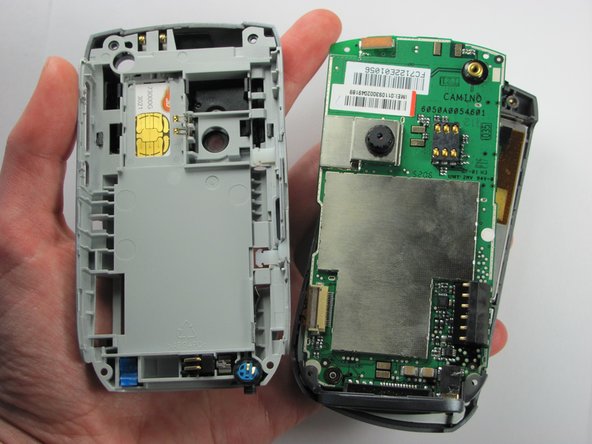
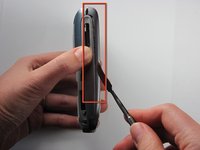
    • Use a spudger to carefully separate the back panel from the front panel to access components inside the phone.

    • Separate the covers from the left side of the device as indicated in the picture.

    • The right side contains orange ribbons that are easily damaged.

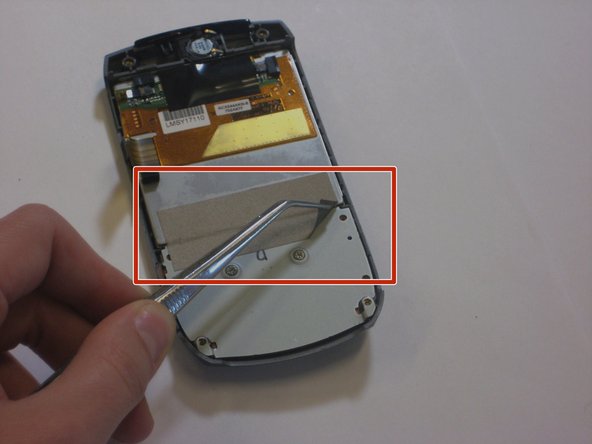
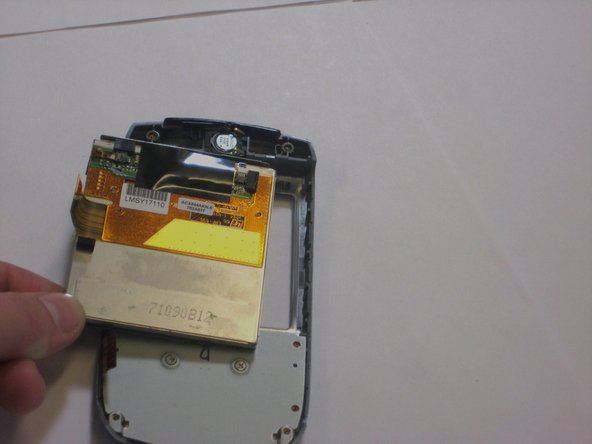
  7. Palm Treo 680 screen replacement, LCD Screen and Touch Screen: step 7, image 1 of 3 Palm Treo 680 screen replacement, LCD Screen and Touch Screen: step 7, image 2 of 3 Palm Treo 680 screen replacement, LCD Screen and Touch Screen: step 7, image 3 of 3
    Tool used on this step:
    Tweezers
    $4.99
    Buy
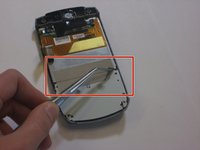
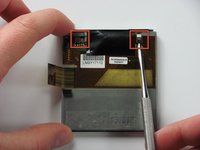
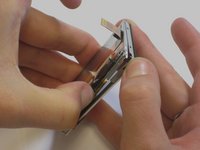
    • Use a pair of tweezers, to carefully peel off the silver tape from the screen.

    • Push the screen out of the back of the front panel to remove it.

  8. Palm Treo 680 screen replacement: step 8, image 1 of 2 Palm Treo 680 screen replacement: step 8, image 2 of 2
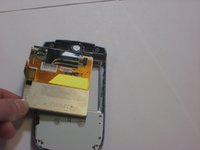
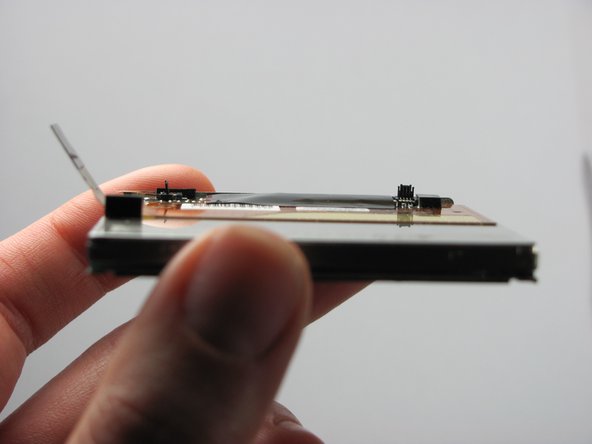
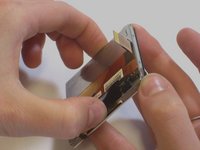
    • Use a small spudger to flip up both of the locking flaps that hold the orange ribbon cables in place.

  9. Palm Treo 680 screen replacement: step 9, image 1 of 3 Palm Treo 680 screen replacement: step 9, image 2 of 3 Palm Treo 680 screen replacement: step 9, image 3 of 3
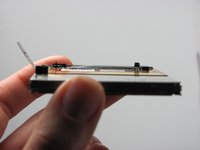
    • Flip the screen over 180 degrees and remove the metal piece that cushions the screen.

    • Flip the screen over again.

    • In the following step, you will only slightly pull the screens apart. Do not fully separate them yet.

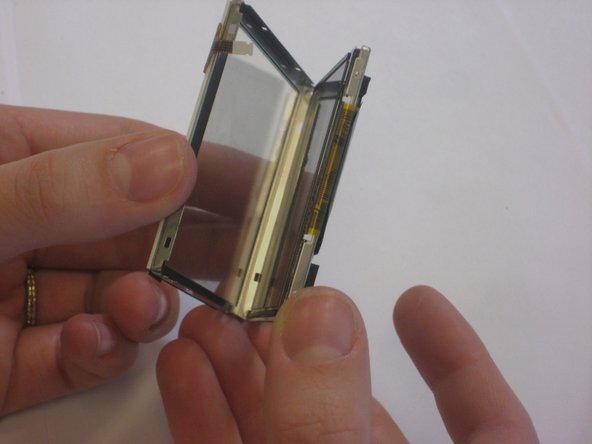
    • Carefully begin to pull apart the touch screen and LCD screen.

  10. Palm Treo 680 screen replacement: step 10, image 1 of 3 Palm Treo 680 screen replacement: step 10, image 2 of 3 Palm Treo 680 screen replacement: step 10, image 3 of 3
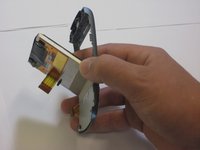
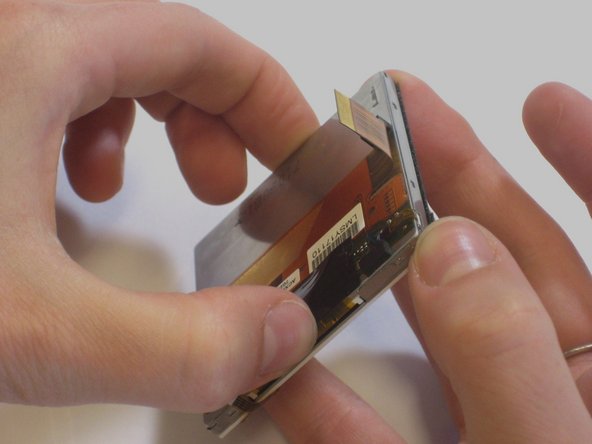
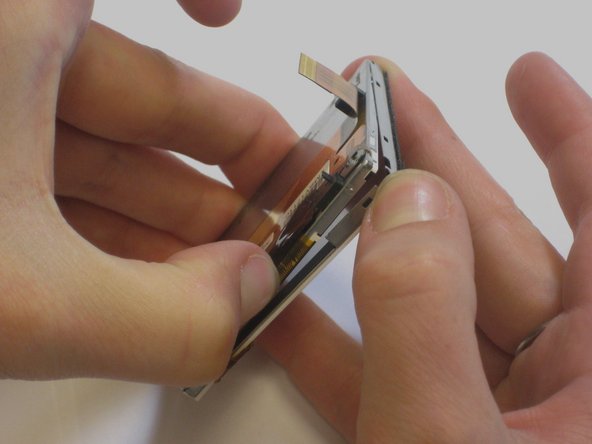
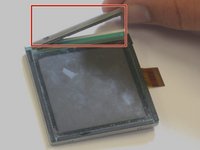
    • Move your thumbs diagonally to the opposite corner of the screen and slightly pull apart the touch screen from the LCD screen.

    • Carefully peel the touch screen away from the LCD screen.

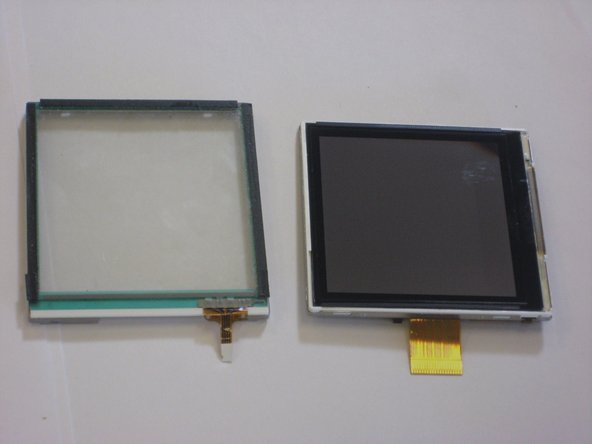
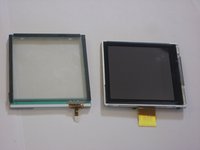
    • The touch screen and LCD screen should now be completely separated.

Conclusion

To reassemble your device, follow these instructions in reverse order, but ensure you use the new screen. Take your e-waste to an R2 or e-Stewards certified recycler.

2 other people completed this guide.

Maiya123

Member since: 10/22/09

84 Reputation

6 Guides authored

Team

Cal Poly, Team 6-4, Maness Fall 2009 Member of Cal Poly, Team 6-4, Maness Fall 2009

CPSU-MANESS-F09S6G4

4 Members

15 Guides authored

2 Guide Comments

where can i get the new touch scree, actually my mobile has fallen down and broken the touch scree. i am a resident in India, Andhra Pradesh, Hyderabad........at Ramkote.... please give me message at chinthala.prasad@yahoo.com please

chinthalaprasad - Reply

These are very nice instructions. They are clear and detailed for anyone to follow. Thanks for putting together the steps and sharing it.

I have not tried all steps completely yet. But will do so. I will left with probably a question what to do with touch screen. My phone has

never fallen down nor damaged. It worked perfectly well and one fine day, touch screen stopped working. In any case, I will try.

RJ

Ravi Joshi - Reply
Add Comment

View Statistics:

Past 24 Hours: 0

Past 7 Days: 10

Past 30 Days: 26

All Time: 6,669