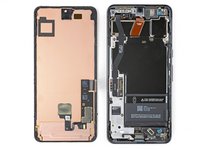
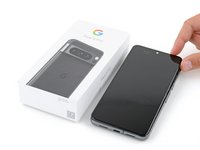
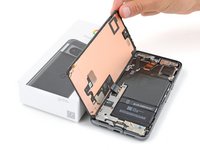
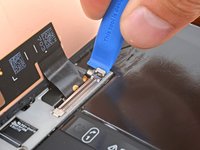
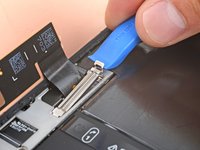
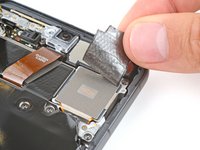
Pixel 8 Pro Graphite Sheet Removal

Prerequisite Only
This is a prerequisite-only guide! This guide is part of another procedure and isn’t meant to be used alone.

What you need

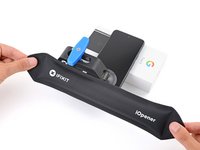
  1. Pixel 8 Pro Graphite Sheet Removal, Prepare your Pixel for disassembly: step 1, image 1 of 3 Pixel 8 Pro Graphite Sheet Removal, Prepare your Pixel for disassembly: step 1, image 2 of 3 Pixel 8 Pro Graphite Sheet Removal, Prepare your Pixel for disassembly: step 1, image 3 of 3
    • Let your Pixel's battery drain below 25% before starting this repair. A charged lithium‑ion battery may catch fire if damaged.

    • Unplug all cables from your phone.

    • Completely power off your phone.

    • Press the power and volume up buttons at the same time to bring up the shutdown menu.

  2. Pixel 8 Pro Graphite Sheet Removal, Mark your opening picks: step 2, image 1 of 3 Pixel 8 Pro Graphite Sheet Removal, Mark your opening picks: step 2, image 2 of 3 Pixel 8 Pro Graphite Sheet Removal, Mark your opening picks: step 2, image 3 of 3
    • You'll be using opening picks to separate the screen from the frame. If inserted too far, a pick can damage your device. Follow this step to mark your pick and prevent damage.

    • Measure 3 mm from the tip and mark the opening pick with a permanent marker.

    • Alternatively, tape a coin to a pick 3 mm from the tip.

  3. Pixel 8 Pro Graphite Sheet Removal, Tape over a cracked screen: step 3, image 1 of 2 Pixel 8 Pro Graphite Sheet Removal, Tape over a cracked screen: step 3, image 2 of 2
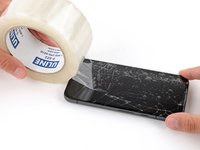
    • Glass shards can complicate disassembly—or worse, cause injury. If your phone has a cracked screen, follow these steps:

    • Apply overlapping strips of packing tape to the cracked glass until the whole screen is covered.

    • Only cover the glass itself—don't stick any tape to the frame.

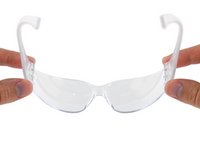
    • Wear safety glasses to protect your eyes from any glass shaken free during the repair.

  4. Pixel 8 Pro Graphite Sheet Removal, Heat the bottom edge adhesive: step 4, image 1 of 1
    • Adhesive and clips secure the screen to the frame. Heating the screen softens the adhesive, making it easier to separate.

    • Heat an iOpener and lay it on the bottom edge of the screen for two minutes to soften the adhesive.

    • Alternatively, you can use a hair dryer, heat gun, or hot plate—but be careful as extreme heat can damage the screen and/or battery.

  5. Pixel 8 Pro Graphite Sheet Removal, Secure the Anti-Clamp: step 5, image 1 of 3 Pixel 8 Pro Graphite Sheet Removal, Secure the Anti-Clamp: step 5, image 2 of 3 Pixel 8 Pro Graphite Sheet Removal, Secure the Anti-Clamp: step 5, image 3 of 3
    Tool used on this step:
    Clampy - Anti-Clamp
    $24.95
    Buy
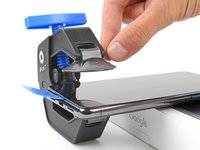
    • The next three steps demonstrate the Anti-Clamp, a tool we designed to make the opening procedure easier. If you aren't using the Anti-Clamp, skip down three steps for an alternate method.

    • For complete instructions on how to use the Anti-Clamp, check out this guide.

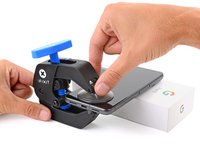
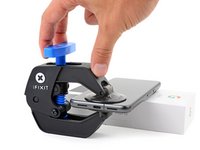
    • Pull the blue handle backwards to unlock the Anti-Clamp's arms.

    • Place your phone screen side up on an object so it will rest level between the Anti-Clamp's arms—the bottom edge should be hanging off.

    • Slide the arms over the left edge of your phone, so you have access to the bottom edge.

    • Position the suction cups as close to the center of the bottom edge as possible.

    • Squeeze the cups together to create suction.

  6. Pixel 8 Pro Graphite Sheet Removal, Twist the handle: step 6, image 1 of 3 Pixel 8 Pro Graphite Sheet Removal, Twist the handle: step 6, image 2 of 3 Pixel 8 Pro Graphite Sheet Removal, Twist the handle: step 6, image 3 of 3
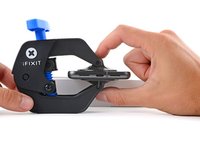
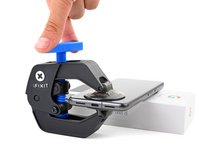
    • Pull the handle forward to lock the arms.

    • Turn the handle clockwise one full turn (360 degrees), or until the suction cups begin to stretch.

    • As the cups stretch, make sure they stay aligned with each other. If they keep slipping, remove the Anti-Clamp and apply tape for the cups to stick to.

  7. Pixel 8 Pro Graphite Sheet Removal, Insert an opening pick: step 7, image 1 of 3 Pixel 8 Pro Graphite Sheet Removal, Insert an opening pick: step 7, image 2 of 3 Pixel 8 Pro Graphite Sheet Removal, Insert an opening pick: step 7, image 3 of 3
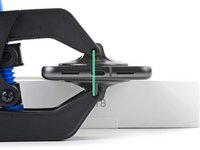
    • Wait one minute for a gap to form between the screen and frame.

    • If the adhesive doesn't separate, twist the handle clockwise one quarter turn and wait another minute. Apply more heat if the screen cools down.

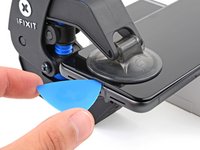
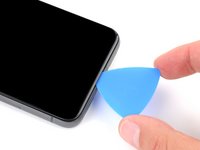
    • Insert an opening pick into the gap.

    • Don't insert your opening pick more than 3 mm to avoid damaging the spring contacts.

    • Pull the blue handle backwards to unlock the arms and remove the Anti-Clamp using the pull tabs on the suction cups.

    • Skip the next two steps.

  8. Pixel 8 Pro Graphite Sheet Removal, Apply a suction cup: step 8, image 1 of 2 Pixel 8 Pro Graphite Sheet Removal, Apply a suction cup: step 8, image 2 of 2
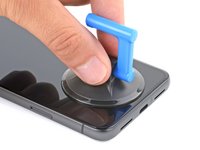
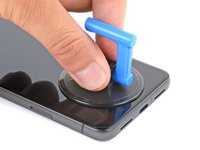
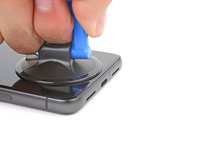
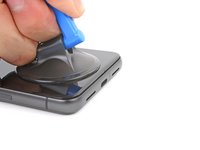
    • Apply a suction handle to the center of the screen's bottom edge.

  9. Pixel 8 Pro Graphite Sheet Removal, Insert an opening pick: step 9, image 1 of 3 Pixel 8 Pro Graphite Sheet Removal, Insert an opening pick: step 9, image 2 of 3 Pixel 8 Pro Graphite Sheet Removal, Insert an opening pick: step 9, image 3 of 3
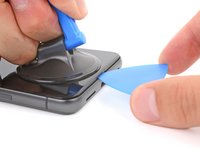
    • Pull up on the suction handle with strong, steady force until a gap forms between the screen and frame.

    • If you're having trouble creating a gap, apply more heat and try again.

    • Insert an opening pick into the gap.

  10. Pixel 8 Pro Graphite Sheet Removal, Prevent damage to your phone: step 10, image 1 of 2 Pixel 8 Pro Graphite Sheet Removal, Prevent damage to your phone: step 10, image 2 of 2
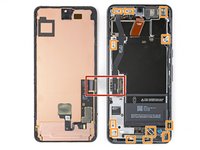
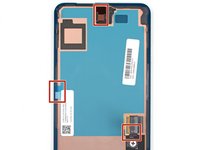
    • To avoid damaging your phone, don't insert your pick more than 3 mm as you separate the screen adhesive. Note the following areas:

    • The screen cable is a little less than halfway up the left edge of the phone. Be very careful here to avoid tearing the cable.

    • There are many spring contacts around the perimeter of the phone. Be very careful in these areas to avoid bending the contacts.

  11. Pixel 8 Pro Graphite Sheet Removal, Separate the bottom edge adhesive: step 11, image 1 of 3 Pixel 8 Pro Graphite Sheet Removal, Separate the bottom edge adhesive: step 11, image 2 of 3 Pixel 8 Pro Graphite Sheet Removal, Separate the bottom edge adhesive: step 11, image 3 of 3
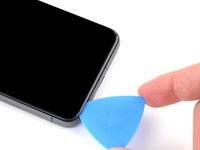
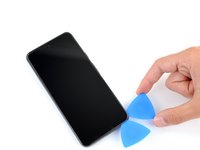
    • Slide the opening pick along the bottom edge to separate the adhesive securing it.

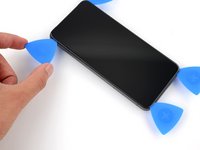
    • Leave the pick in the bottom right corner to prevent the adhesive from resealing.

  12. Pixel 8 Pro Graphite Sheet Removal, Heat the right edge adhesive: step 12, image 1 of 1
    • Apply a heated iOpener to the right edge of the screen for two minutes.

    • Alternatively, you can use a hair dryer, heat gun, or hot plate—but be careful as extreme heat can damage the screen and/or battery.

  13. Pixel 8 Pro Graphite Sheet Removal, Separate the right edge adhesive: step 13, image 1 of 3 Pixel 8 Pro Graphite Sheet Removal, Separate the right edge adhesive: step 13, image 2 of 3 Pixel 8 Pro Graphite Sheet Removal, Separate the right edge adhesive: step 13, image 3 of 3
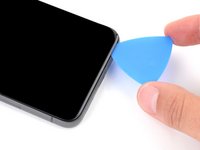
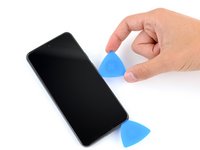
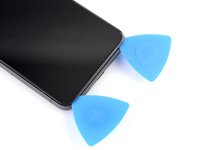
    • Insert a second opening pick under the bottom right corner of the screen.

    • Slide the new pick to the top right corner to separate the adhesive securing the screen's right edge.

    • Leave the pick in the top right corner to prevent the adhesive from resealing.

  14. Pixel 8 Pro Graphite Sheet Removal, Leave a pick in the bottom left corner: step 14, image 1 of 3 Pixel 8 Pro Graphite Sheet Removal, Leave a pick in the bottom left corner: step 14, image 2 of 3 Pixel 8 Pro Graphite Sheet Removal, Leave a pick in the bottom left corner: step 14, image 3 of 3
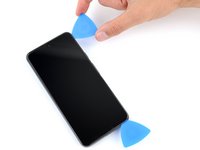
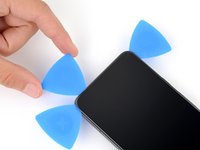
    • Insert a third opening pick under the bottom edge of the screen.

    • Slide the new pick to the bottom left corner.

    • Leave the pick in the bottom left corner to prevent the adhesive from resealing.

  15. Pixel 8 Pro Graphite Sheet Removal, Heat the left edge adhesive: step 15, image 1 of 1
    • Apply a heated iOpener to the left edge of the screen for two minutes.

    • Alternatively, you can use a hair dryer, heat gun, or hot plate—but be careful as extreme heat can damage the screen and/or battery.

  16. Pixel 8 Pro Graphite Sheet Removal, Separate the left edge adhesive: step 16, image 1 of 3 Pixel 8 Pro Graphite Sheet Removal, Separate the left edge adhesive: step 16, image 2 of 3 Pixel 8 Pro Graphite Sheet Removal, Separate the left edge adhesive: step 16, image 3 of 3
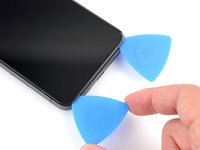
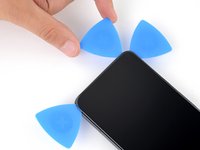
    • Insert a fourth opening pick under the bottom left corner of the screen.

    • Slide the new pick to the top left corner to separate the adhesive securing the screen's left edge.

    • Leave the pick in the top left corner to prevent the adhesive from resealing.

  17. Pixel 8 Pro Graphite Sheet Removal, Heat the top edge adhesive: step 17, image 1 of 1
    • Apply a heated iOpener to the top edge of the screen for two minutes.

    • Alternatively, you can use a hair dryer, heat gun, or hot plate—but be careful as extreme heat can damage the screen and/or battery.

  18. Pixel 8 Pro Graphite Sheet Removal, Separate the top edge adhesive: step 18, image 1 of 2 Pixel 8 Pro Graphite Sheet Removal, Separate the top edge adhesive: step 18, image 2 of 2
    • Insert a fifth opening pick under the top edge of the screen, near the left corner.

    • Slide the opening pick to the top right corner to separate the adhesive securing the screen's top edge.

  19. Pixel 8 Pro Graphite Sheet Removal, Prop up the screen: step 19, image 1 of 2 Pixel 8 Pro Graphite Sheet Removal, Prop up the screen: step 19, image 2 of 2
    • Place a small box or stack of books to the left of your phone so you can prop up the screen while disconnecting its cable.

    • Swing up the right edge of the screen like the front cover of a book.

    • If the screen feels stuck, go back around the perimeter with an opening pick to separate any remaining adhesive.

    • Prop up the screen so you can access the screen cable without straining it.

  20. Pixel 8 Pro Graphite Sheet Removal, Remove the screen cable cover: step 20, image 1 of 3 Pixel 8 Pro Graphite Sheet Removal, Remove the screen cable cover: step 20, image 2 of 3 Pixel 8 Pro Graphite Sheet Removal, Remove the screen cable cover: step 20, image 3 of 3
    • Use an opening tool to pry up the upper edge of the screen cable cover.

    • Remove the cover.

  21. Pixel 8 Pro Graphite Sheet Removal, Disconnect the screen: step 21, image 1 of 3 Pixel 8 Pro Graphite Sheet Removal, Disconnect the screen: step 21, image 2 of 3 Pixel 8 Pro Graphite Sheet Removal, Disconnect the screen: step 21, image 3 of 3
    • Insert the point of a spudger under the top right corner of the screen's press connector.

    • Gently pry up and disconnect the cable.

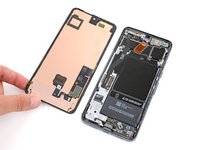
    • Remove the screen.

    • To reconnect a press connector, align it over its socket and gently press down on one side until it clicks into place, then press down on the other side. Don't press down in the middle. If the connector is misaligned, the pins can bend and cause permanent damage.

  22. Pixel 8 Pro Graphite Sheet Removal, Screen information: step 22, image 1 of 1
    • The back of the Pixel's screen is very fragile. Even a small scratch or dent can damage the screen.

    • To prevent damaging your screen or replacement screen:

    • When handling your screen, grip it by its edges.

    • When placing the screen on your work area, make sure nothing is touching the bottom of the screen. Consider placing it on a soft, lint-free cloth.

  23. Pixel 8 Pro Graphite Sheet Removal, Reassembly information: step 23, image 1 of 3 Pixel 8 Pro Graphite Sheet Removal, Reassembly information: step 23, image 2 of 3 Pixel 8 Pro Graphite Sheet Removal, Reassembly information: step 23, image 3 of 3
    • If you're installing a new screen with pre-installed adhesive, follow this step during reassembly. Otherwise, follow this guide to apply adhesive to your old screen.

    • Thoroughly check the entire screen for any plastic liners or tape and use the pull tabs to remove all of them. Look carefully for a large piece of plastic covering the back of the screen, a small one near the front camera cutout, and adhesive liners around the perimeter.

    • Reconnect the screen cable and reinstall its cover.

    • Firmly press the screen into place on the frame—you should feel the clips "pop" into place.

    • Press firmly around the perimeter of the screen to secure it with the new adhesive.

    • Optionally, you can strengthen the adhesive bond by applying pressure evenly to the phone.

    • Follow this guide to calibrate the fingerprint sensor.

  24. Pixel 8 Pro Graphite Sheet Removal, Disconnect the 5G mmWave antenna: step 24, image 1 of 2 Pixel 8 Pro Graphite Sheet Removal, Disconnect the 5G mmWave antenna: step 24, image 2 of 2
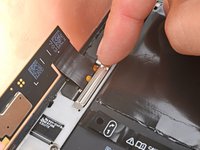
    • The next few steps show how to disconnect and detach the 5G mmWave antenna cable. If your phone doesn't have a 5G mmWave antenna, skip the next four steps.

    • Be very careful not to scrape off or damage any surface mounted components during this step.

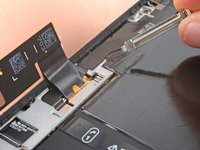
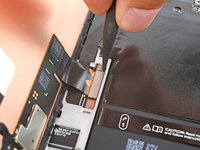
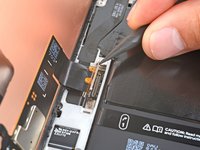
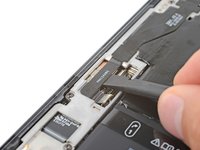
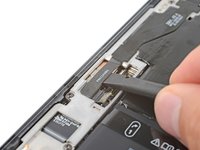
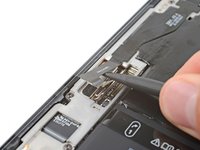
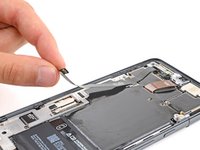
    • Insert the tip of a spudger under the top edge of the 5G mmWave antenna's press connector.

    • Gently pry up and disconnect the cable.

  25. Pixel 8 Pro Graphite Sheet Removal, Heat the 5G mmWave antenna adhesive: step 25, image 1 of 1
  26. Pixel 8 Pro Graphite Sheet Removal, Separate the 5G mmWave antenna adhesive: step 26, image 1 of 3 Pixel 8 Pro Graphite Sheet Removal, Separate the 5G mmWave antenna adhesive: step 26, image 2 of 3 Pixel 8 Pro Graphite Sheet Removal, Separate the 5G mmWave antenna adhesive: step 26, image 3 of 3
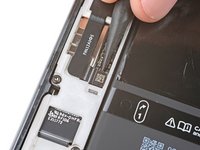
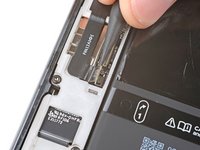
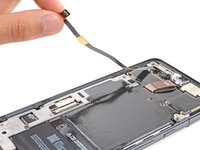
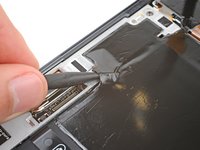
    • Insert the flat end of a spudger between the bottom of the 5G mmWave antenna cable and the midframe, just above the press connector.

    • Twist the spudger to separate the bottom of the cable from the midframe.

  27. Pixel 8 Pro Graphite Sheet Removal, Peel up the 5G mmWave antenna: step 27, image 1 of 3 Pixel 8 Pro Graphite Sheet Removal, Peel up the 5G mmWave antenna: step 27, image 2 of 3 Pixel 8 Pro Graphite Sheet Removal, Peel up the 5G mmWave antenna: step 27, image 3 of 3
    Tool used on this step:
    Tesa 61395 Tape
    $5.99
    Buy
    • Grip the bottom of the 5G mmWave antenna cable and gently peel it from the midframe.

    • During reassembly, press the cable back into place on the midframe to secure it with the old adhesive. If it doesn't stick, use thin, double-sided tape to secure it.

  28. Pixel 8 Pro Graphite Sheet Removal, Remove the graphite tape: step 28, image 1 of 3 Pixel 8 Pro Graphite Sheet Removal, Remove the graphite tape: step 28, image 2 of 3 Pixel 8 Pro Graphite Sheet Removal, Remove the graphite tape: step 28, image 3 of 3
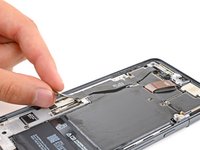
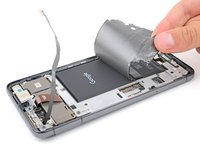
    • A large graphite sheet must be removed and replaced to complete this repair. It connects the upper part of the battery, midframe, and the rear cameras.

    • Insert the point of a spudger under different parts of the graphite sheet and lift until you can grip the sheet with your fingers.

    • The sections of graphite sheet between the rear cameras and the battery will most likely tear. If they do, grip the broken part of the sheet and remove that section.

    • Peel up and remove the entire graphite sheet.

    • During reassembly, do not reuse the old graphite sheet. Follow this guide to replace the sheet.

Conclusion

To reassemble your device, follow these instructions in reverse order.

Spencer Day

Member since: 09/14/22

155,647 Reputation

1,033 Guides authored

Team

iFixit Member of iFixit

Staff

123 Members

23,803 Guides authored

0 Guide Comments

Add Comment

View Statistics:

Past 24 Hours: 0

Past 7 Days: 1

Past 30 Days: 4

All Time: 70