Introduction
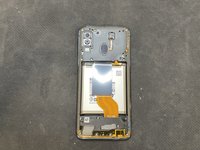
There are two different options for replacing the display on the Galaxy A40. The first option, shown here, involves a replacement display that comes with a pre-assembled frame. In this case, all of the phone's internal components must be transferred to the new display.
Alternatively, there is the option of replacing only the display, i.e., without the frame. This is somewhat riskier, as there is a greater chance of damaging the new display. Due to the absence of the frame, it lacks the supporting structure. In addition, the new display must be glued in place.
To replace your display, you will need the following items:
- Display unit with frame
- Hot air gun or iHeater
- Opening picks
- Spudger
- Screwdriver set
- Tweezers
-
-
Remove the SIM card
-
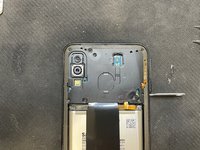
Heat the edges of the rear panel until you can just hold the device without burning yourself. Use a hairdryer, heat gun, or oven (I set an oven to 80ºC [175ºF] top/bottom heat, after about 3 minutes the right temperature was reached). The heat will soften the glue between the back and the frame.
-
Insert a flat plastic tool (e.g. pick or spudger) between the back and the frame.
-
Slowly work your way along the entire edge until the back is detached and you can lift it off. Lift the back slowly, and press the fingerprint sensor against the frame so that it detaches from the back and does not tear out.
-
-
-
-
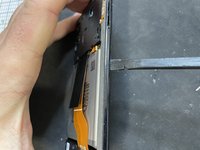
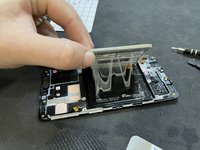
Now the frame can be removed with the help of a spudger.
-
The best way to do this is to insert the spudger between the display and the frame from the SIM slot and then carefully pull it along the entire device.
-
Here you will hear some clicking, which means that the clips are coming loose.
-
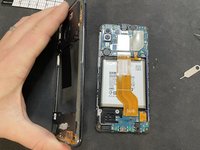
Once all clips are released, the frame can be easily removed.
-
-
-
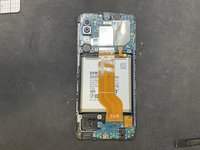
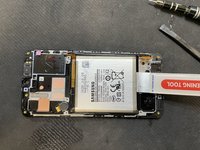
First, the battery should be unplugged, as there is still voltage on the components even though the device is switched off.
-
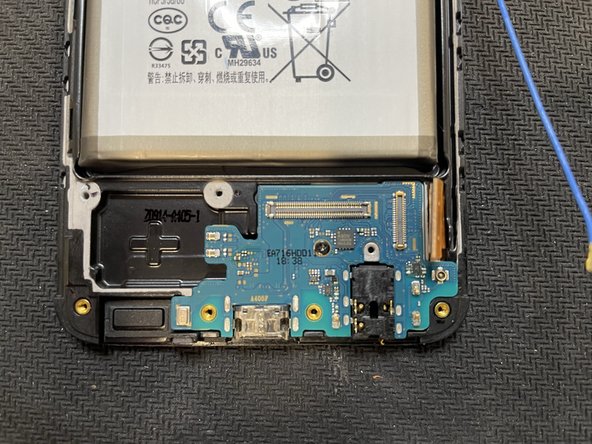
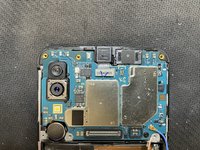
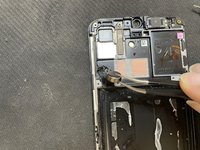
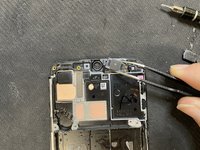
Next, all connections from the logic boards to the display and between the boards can be disconnected.
-
To do this, disconnect the large "main-sub" cable, the antenna, and the display flex.
-










To reassemble your device, follow the steps in reverse order.
Cancel: I did not complete this guide.
6 other people completed this guide.
Special thanks to these translators:
100%


These translators are helping us fix the world! Want to contribute?
Start translating ›


