Free Shipping on Domestic Orders $75+

Wacom DTU-1031X Disassembly

What you need

  1. Wacom DTU-1031X Disassembly, Wacom DTU-1031X Disassembly: step 1, image 1 of 1
    • Place the tablet with the screen facing down the surface.

    • (Optional) Remove the plastic dummy plug in the pen holder

  2. Wacom DTU-1031X Disassembly: step 2, image 1 of 2 Wacom DTU-1031X Disassembly: step 2, image 2 of 2
    • Remove 4 rubber feet

    • Unscrew 4 Phillips #0screws

  3. Wacom DTU-1031X Disassembly: step 3, image 1 of 2 Wacom DTU-1031X Disassembly: step 3, image 2 of 2
    • Unclip the bottom casing

    • The clips are very strong and require substantial amount of force to unclip

    • The easiest start point to start prying is around the USB port

    • See the second image to locate the position of the clips

  4. Wacom DTU-1031X Disassembly: step 4, image 1 of 3 Wacom DTU-1031X Disassembly: step 4, image 2 of 3 Wacom DTU-1031X Disassembly: step 4, image 3 of 3
    • To remove the USB daughter board, unscrew 3 Philips #00 screws

    • One of the screws are hiding under the tape

    • Disconnect the cable and remove the board

  5. Wacom DTU-1031X Disassembly: step 5, image 1 of 3 Wacom DTU-1031X Disassembly: step 5, image 2 of 3 Wacom DTU-1031X Disassembly: step 5, image 3 of 3
    • To remove the mainboard, unscrew 4 Phillips #00 screws

    • Removal of the yellow kapton tape will be required

    • Unplug the 40-pin LVDS flex cable

    • The transparent tape holding the 40-pin LVDS cable to the mainboard is a part of the cable, and should not be separated

    • Unplug two cables connecting the digitizer daughter board to mainboard

    • Unplug the USB daughter board cable

  6. Wacom DTU-1031X Disassembly: step 6, image 1 of 3 Wacom DTU-1031X Disassembly: step 6, image 2 of 3 Wacom DTU-1031X Disassembly: step 6, image 3 of 3
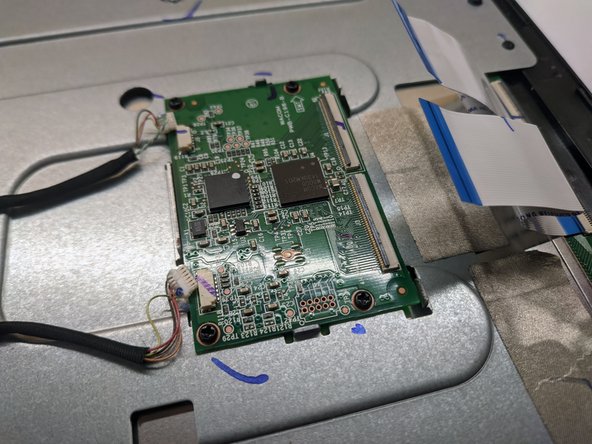
    • To remove the digitizer daughter board, unscrew 4 Phillips #00 screws

    • Unclip two flex cables connecting the digitizer to the digitizer board

    • Unclipped connector will have it's black plastic part facing up

    • Disconnect two cables connecting the daugher board with the mainboard

  7. Wacom DTU-1031X Disassembly: step 7, image 1 of 2 Wacom DTU-1031X Disassembly: step 7, image 2 of 2
    • Unplug the 40-pin LVDS cable from the LCD display

    • Unscrew 11 Phillips #00 screws holding the metal piece to the front plastic casing

  8. Wacom DTU-1031X Disassembly: step 8, image 1 of 3 Wacom DTU-1031X Disassembly: step 8, image 2 of 3 Wacom DTU-1031X Disassembly: step 8, image 3 of 3
    • Unscrew 9 wide Phillips #00 screws holding the LCD panel to the front plastic casing

    • One of the screws is hiding under the metalic tape

    • The LCD display will now be loose, and can be removed

    • The front glass is glued to the front plastic casing

Conclusion

To reassemble your device, follow these instructions in reverse order.

00004707

Member since: 07/23/20

1,187 Reputation

5 Guides authored

0 Guide Comments

Add Comment

View Statistics:

Past 24 Hours: 0

Past 7 Days: 6

Past 30 Days: 19

All Time: 454