iPhone 15 Pro Max Battery Disconnection

Prerequisite Only
This is a prerequisite-only guide! This guide is part of another procedure and isn’t meant to be used alone.
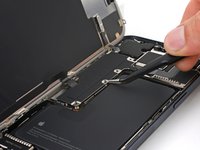
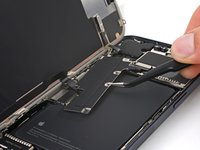
  1. iPhone 15 Pro Max Battery Disconnection, Swing open the screen: step 1, image 1 of 3 iPhone 15 Pro Max Battery Disconnection, Swing open the screen: step 1, image 2 of 3 iPhone 15 Pro Max Battery Disconnection, Swing open the screen: step 1, image 3 of 3
    • Gently swing open the screen to the left of the phone.

    • If the screen feels stuck, go back around the perimeter to check for missed sections of adhesive or stuck clips.

    • Rest the screen against a box or similar object so it doesn't strain the cables.

  2. iPhone 15 Pro Max Battery Disconnection, Unfasten the logic board cover: step 2, image 1 of 2 iPhone 15 Pro Max Battery Disconnection, Unfasten the logic board cover: step 2, image 2 of 2
    Tool used on this step:
    FixMat
    $36.95
    Buy
    • Throughout this repair, keep track of each screw and make sure it goes back exactly where it came from.

    • Use a tri-point Y000 driver to remove the six screws securing the logic board cover:

    • One 2.1 mm‑long screw

    • Five 1.5 mm‑long screws

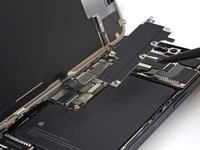
  3. iPhone 15 Pro Max Battery Disconnection, Remove the logic board cover: step 3, image 1 of 3 iPhone 15 Pro Max Battery Disconnection, Remove the logic board cover: step 3, image 2 of 3 iPhone 15 Pro Max Battery Disconnection, Remove the logic board cover: step 3, image 3 of 3
    Tool used on this step:
    Tweezers
    $4.99
    Buy
    • Use tweezers or your fingers to grab and slide the logic board cover toward the bottom of the phone to clear the sensor cable.

    • Remove the cover.

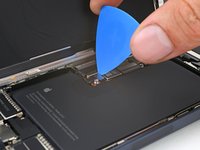
  4. iPhone 15 Pro Max Battery Disconnection, Disconnect the battery: step 4, image 1 of 3 iPhone 15 Pro Max Battery Disconnection, Disconnect the battery: step 4, image 2 of 3 iPhone 15 Pro Max Battery Disconnection, Disconnect the battery: step 4, image 3 of 3
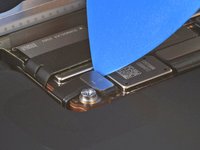
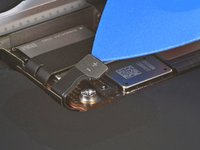
    • Use the tip of an opening pick to pry up and disconnect the battery press connector.

    • To reconnect a press connector, align it over its socket and gently press down on one side until it clicks into place, then press down on the other side. Make sure it sits flat, as the insulating rubber around the sockets might prevent it from connecting fully.

Conclusion

To reassemble your device, follow these instructions in reverse order.

Clay Eickemeyer

Member since: 09/19/22

96,393 Reputation

466 Guides authored

Team

Guide Team Member of Guide Team

Staff

10 Members

15,954 Guides authored

0 Guide Comments

Add Comment

View Statistics:

Past 24 Hours: 0

Past 7 Days: 0

Past 30 Days: 3

All Time: 75